
How to Calculate Time in Status in Jira Cloud
Learn how Jira Cloud calculates time in status, including repeated visits, current statuses, date ranges, business hours, and reporting options.
Jira records every status transition, but Jira Cloud does not provide one universal report for every historical status duration. Time in status is calculated from each entry and exit timestamp, repeated visits are summed, and the result is then limited by the selected date range and work calendar.
Want to run this report with your Jira data? Try StatusPath Reports free on Atlassian Marketplace, then start with a small, real Jira scope.
It helps teams answer questions such as:
- Where do work items spend the most time?
- Which workflow status is creating a bottleneck?
- How long does review or testing usually take?
- Are work items moving through the workflow faster than before?
- How much time is assigned to each team member?
Jira records status changes in the work item history. To produce a detailed time-in-status report, those status transitions must be converted into time intervals and summarized for each work item.
What Does Time in Status Mean?
Each time a work item changes status, Jira records the transition time.
For example:
| Time | Status |
|---|---|
| Monday 09:00 | Backlog |
| Monday 10:30 | In Progress |
| Monday 12:00 | Waiting for Review |
| Tuesday 11:00 | Done |
The calculated time in each status would be:
| Status | Duration |
|---|---|
| Backlog | 1 hour 30 minutes |
| In Progress | 1 hour 30 minutes |
| Waiting for Review | 23 hours |
The duration of the current status can continue until the report end time or the current time, depending on the report configuration.
When a work item enters the same status more than once, the durations of all visits are normally added together.
Does Jira Provide Time-in-Status Reports?
Jira Cloud includes the Control Chart, which displays cycle or lead time for selected workflow statuses. Atlassian Analytics also provides a Time in current status dashboard template for the narrower question of how long work items have remained in their present status.
These native reports are useful for high-level workflow analysis. However, teams often need additional details, such as:
- One row for every work item
- A separate column for every workflow status
- Average duration by status
- Time grouped by assignee
- Business hours and holiday calendars
- Filtering by Project, JQL, Sprint, Epic, or saved filter
- CSV and Excel export
- Status entry dates and transition counts
| Reporting question | Best starting point |
|---|---|
| Cycle or lead time across selected statuses | Jira Control Chart |
| Time in the current status only | Atlassian Analytics dashboard template |
| Historical duration for every status and work item | A reporting app or API workflow |
A dedicated time-in-status reporting app can calculate these values from Jira history and present them in a reusable report. StatusPath Reports provides this detailed Jira Time in Status report path for Jira Cloud.
How Time in Status Is Calculated
The basic calculation is:
Time in status = next status change time − status entry time
For the current status:
Current status duration = report end time − current status entry time
A report normally processes the complete sequence of status changes:
- Read the work item creation time.
- Read status changes from the Jira history.
- Sort the changes chronologically.
- Create a time segment for every status visit.
- Apply the selected report date range.
- Apply calendar and duration settings.
- Add repeated visits to the same status.
- Display the result by work item, status, group, or time period.
Important Settings That Affect the Result
Time-in-status results can differ between reports even when they use the same Jira data. The following settings should be checked before comparing results.
1. Calendar Time or Business Time
Calendar time includes evenings, weekends, and holidays.
Business time counts only the configured working schedule, for example:
- Monday to Friday
- 09:00 to 17:00
- Excluding public holidays
A work item that waits from Friday afternoon until Monday morning may show several calendar days but only a small amount of business time.
2. Time Zone
The selected time zone affects:
- The beginning and end of each day
- Working-hour boundaries
- Weekly and monthly grouping
- Daylight-saving-time changes
- Date-range clipping
Use a calendar time zone that matches the team or reporting requirement.
3. Report Date Range
A report can calculate the complete history of a work item or only the portion that overlaps a selected date range.
For example, when a work item entered In Progress before the report start date, the report may count only the duration after the selected start date.
4. Repeated Status Entries
A work item can enter the same status multiple times.
For example:
In Progress → Review → In Progress → Done
A time-in-status report usually combines both In Progress periods. Status Count can be used to see how many times the status was entered. The repeated-status calculation guide reconciles a two-visit row timestamp by timestamp against an equal-duration one-visit control.
5. Current Status
The current status has no later change to a different status yet. Its duration therefore depends on the selected report end time or the time when the report is generated. Use the current-status duration troubleshooting guide to compare two controlled runs and fix a repeatable history boundary.
How to Create a Time-in-Status Report with StatusPath Reports
StatusPath Reports provides detailed workflow duration reporting for Jira Cloud.
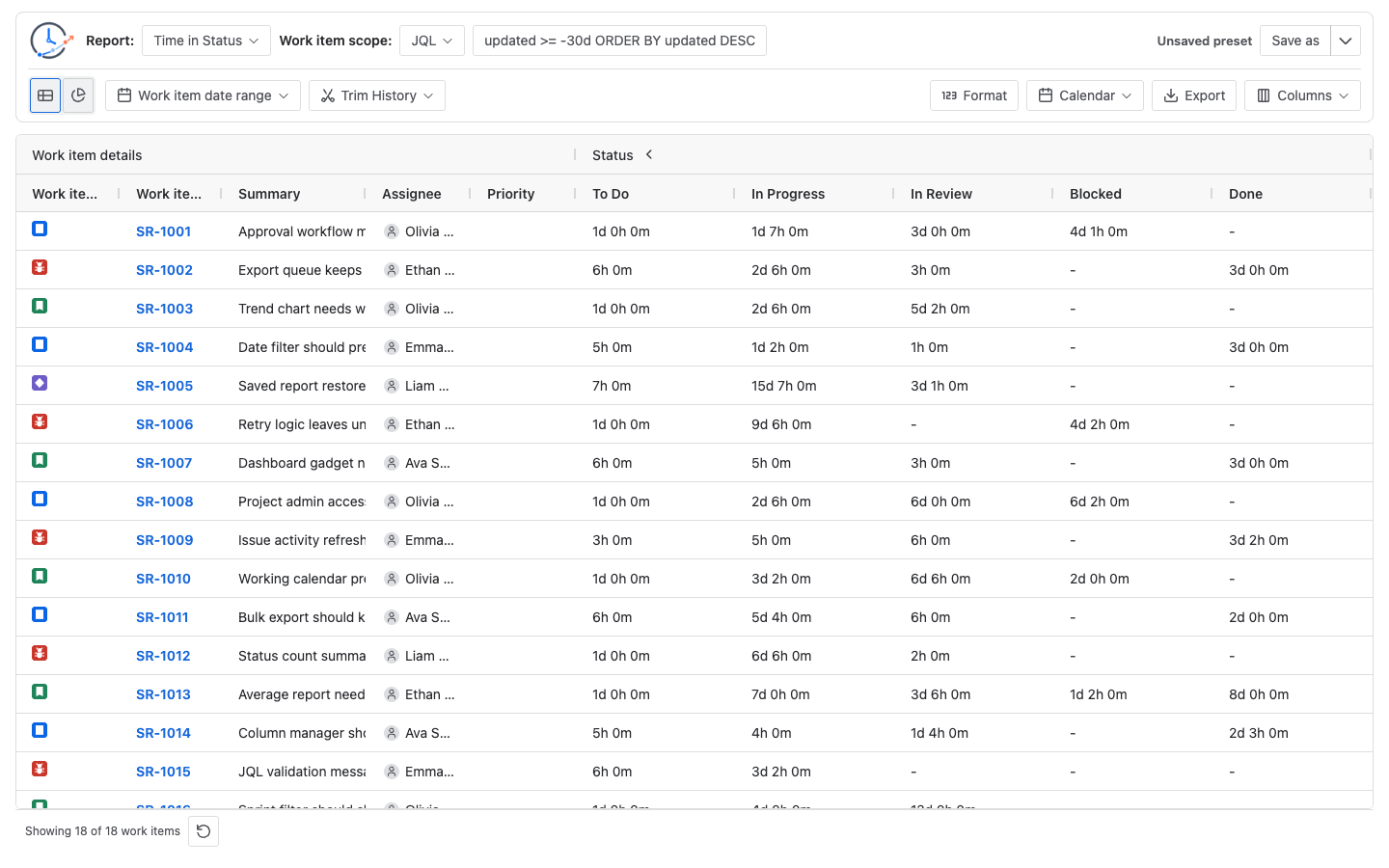
Step 1: Select a Report Type
Open StatusPath Reports and select Time in Status.
Other available report types include:
- Average Time in Status
- Time in Assignee
- Status Count
- Status Entry Date
- Transition Count
Step 2: Select the Data Source
Choose the Jira work items to include using:
- Project
- Saved filter
- JQL
- Sprint
- Epic
Use JQL when you need more precise filtering, such as issue type, priority, resolution, label, component, or creation date.
Step 3: Configure the Date Range
Choose the period that should be included in the calculation.
The date range can be used to analyze:
- A recent sprint
- The previous month
- A release period
- A specific quarter
- The complete available history
Step 4: Select a Duration Format
StatusPath Reports can display durations using formats such as:
- Days, hours, and minutes
- Decimal hours
- Decimal days
- Business hours
- Business days
Choose a consistent format before comparing teams or reporting periods.
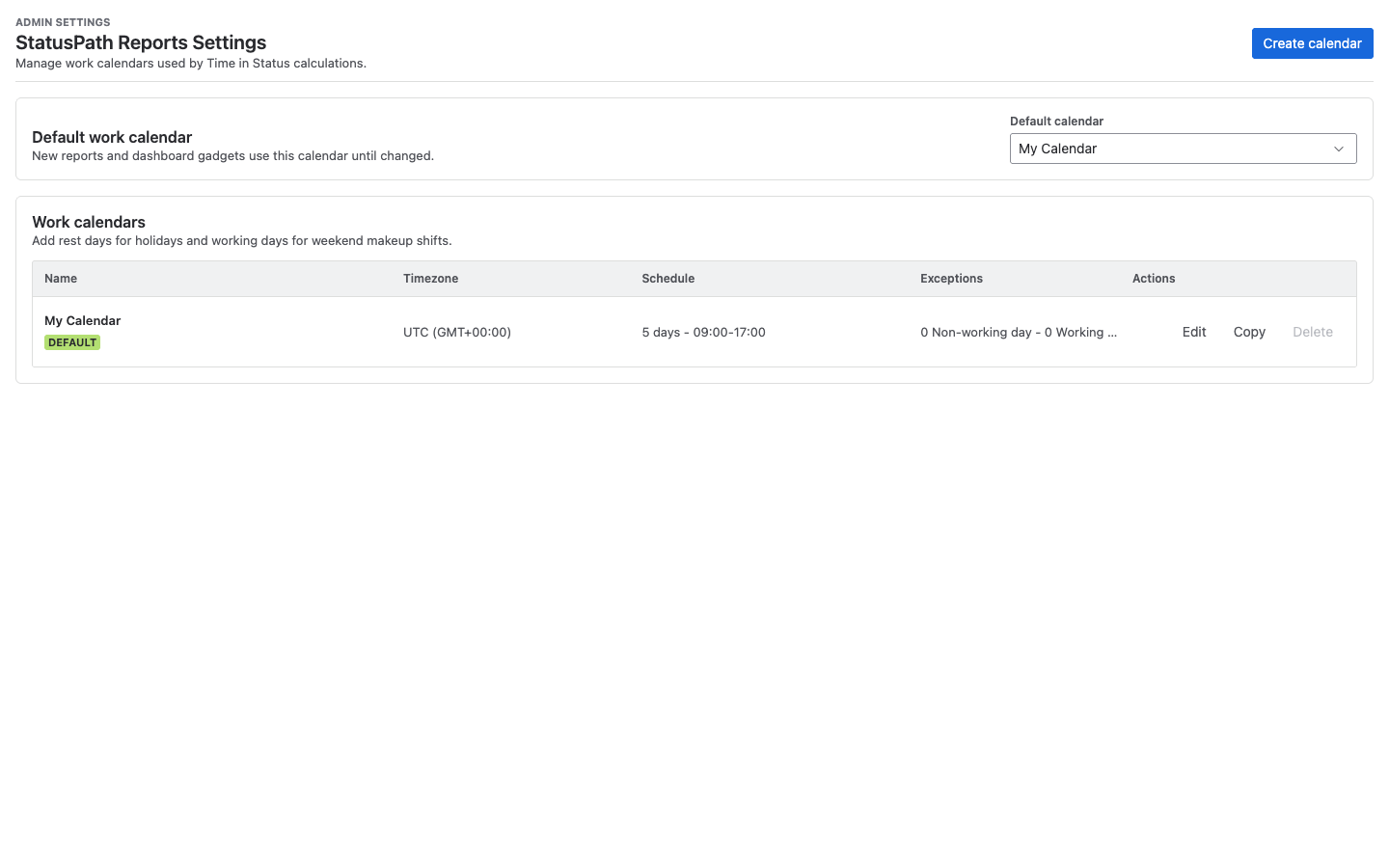
Step 5: Configure the Work Calendar
When business time is required, select or configure a work calendar with:
- Working days
- Daily working hours
- Time zone
- Holidays
This prevents weekends and non-working periods from inflating workflow duration.
Step 6: Run and Analyze the Report
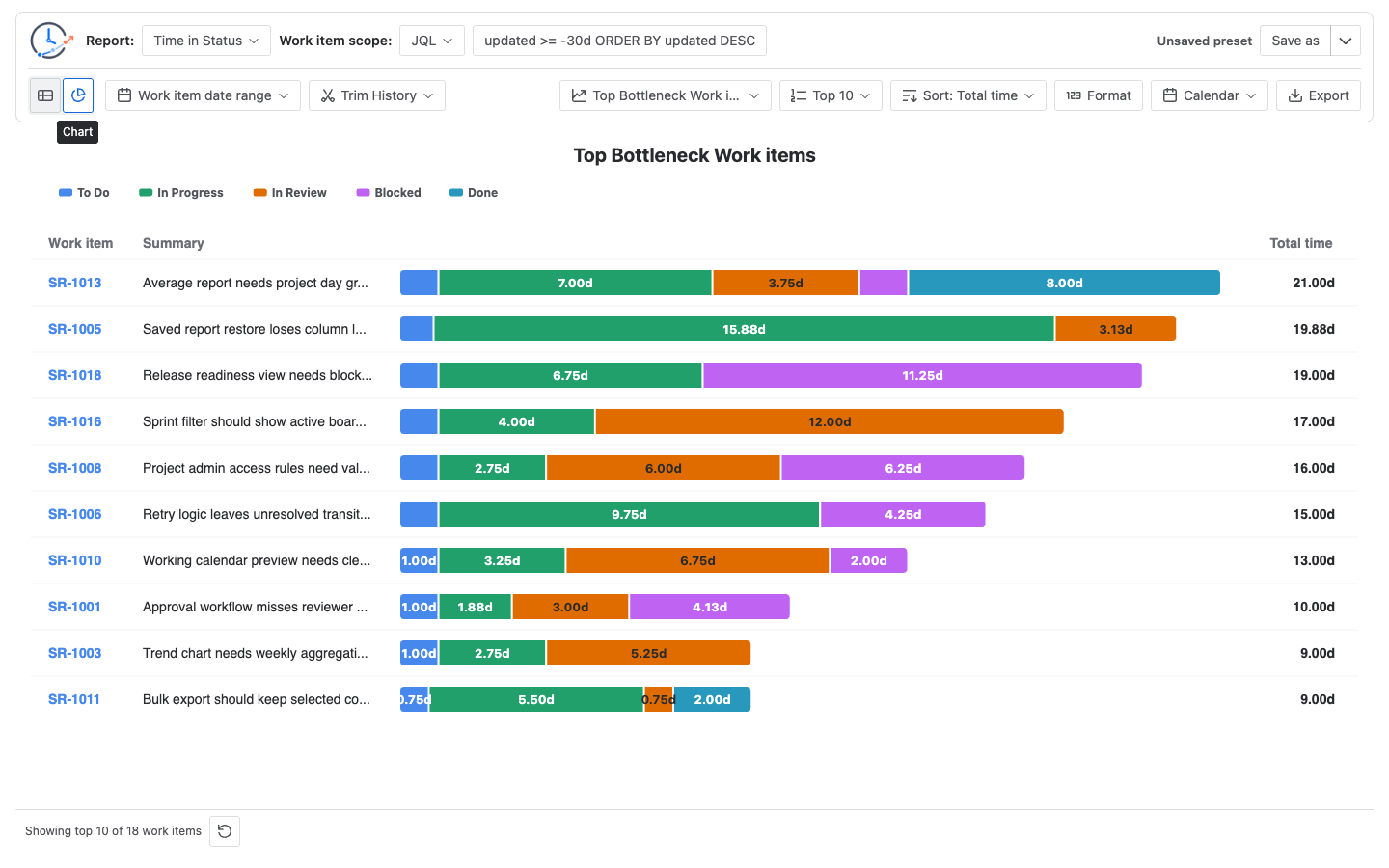
After the report is generated, you can:
- Sort by status duration
- Filter duration values
- Add Jira field columns
- Add or remove status columns
- Create status groups
- Group results by assignee
- Identify the longest workflow stages
- Switch to a chart view
Sorting a status column from longest to shortest is a simple way to find work items that may require attention.
Step 7: Export the Results
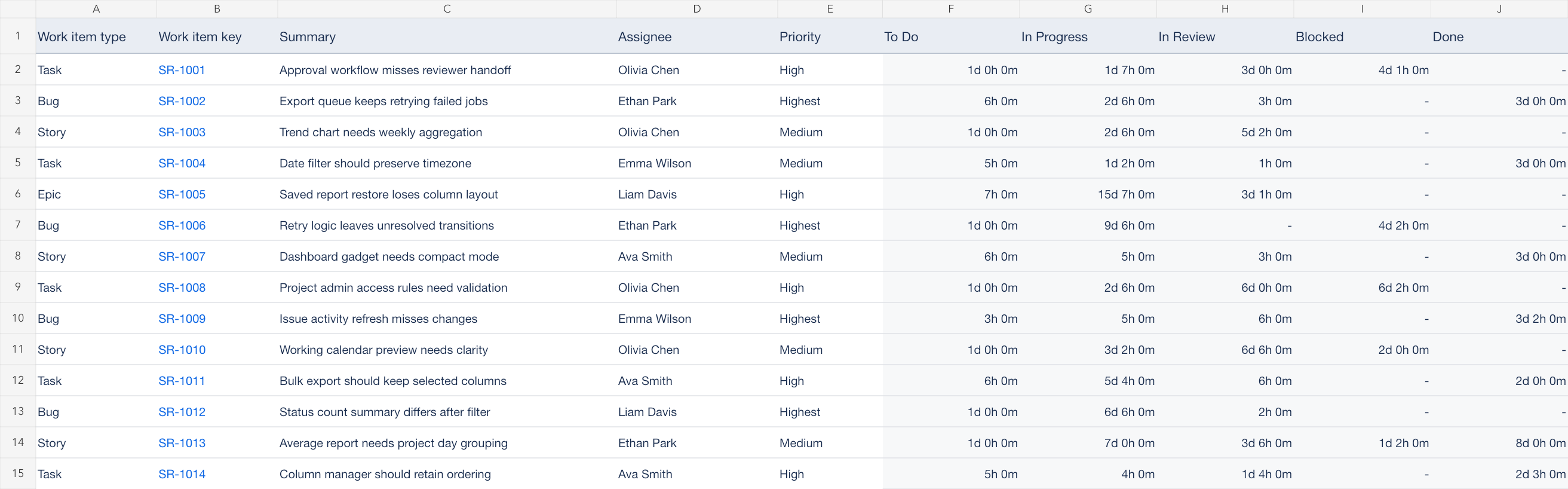
Reports can be exported to CSV or XLSX for:
- Management reporting
- Audit analysis
- Sprint reviews
- Process improvement meetings
- Further analysis in spreadsheet tools
Time in Status vs. Average Time in Status
These two reports answer different questions.
Time in Status
Shows the duration for individual work items.
Example:
| Work item | Backlog | In Progress | Review |
|---|---|---|---|
| DEV-101 | 2h | 6h | 3h |
| DEV-102 | 4h | 10h | 1h |
Use this report to investigate specific work items.
Average Time in Status
Combines multiple work items and calculates the average duration for each status or group.
Example:
| Status | Average duration |
|---|---|
| Backlog | 3h |
| In Progress | 8h |
| Review | 2h |
Use this report to compare workflow performance across projects, sprints, teams, or reporting periods.
Common Use Cases
Identify Workflow Bottlenecks
Compare the total or average time spent in each status. A consistently high value in Review, Testing, or Waiting may indicate limited capacity or unclear handoff rules.
Compare Sprint Performance
Filter work items by sprint and compare average status durations between reporting periods. Use the Jira sprint workflow analysis sequence to keep scope, rework, and trend definitions aligned.
Analyze Rework
Use Status Count or Transition Count to find work items that repeatedly move backward in the workflow.
Measure Assignment Time
Use Time in Assignee to understand how long work items remain assigned to different users without confusing ownership duration with logged work.
Prepare Management Reports
Export the results to Excel or save the report configuration for repeated weekly or monthly reporting. The workflow reporting guide maps the full path from question and scope to validation and output.
Frequently Asked Questions
Does Jira automatically record status changes?
Yes. Jira records workflow status changes in the work item history. A reporting tool can use those timestamps to calculate the duration of each status visit.
Can weekends be excluded?
Yes. Use a business calendar that defines working days, working hours, holidays, and a time zone.
What happens when a work item enters the same status twice?
The report can combine all visits to calculate the total duration. Status Count can show how many times the status was entered.
Can the report use JQL?
Yes. StatusPath Reports supports JQL as a data source, allowing reports to focus on a specific set of Jira work items.
Can the results be exported to Excel?
Yes. StatusPath Reports supports CSV and XLSX export.
Related Guides
-
How to Trace a Jira Work Item That Moves Back and Forth Between Statuses
-
Why a Jira Status Column Is Missing from a Time in Status Report
Start Analyzing Jira Workflow Delays
StatusPath Reports – Time in Status for Jira helps teams analyze workflow duration, assignee time, status entries, transition counts, and bottleneck trends.
It supports business calendars, reusable saved reports, charts, Jira dashboard gadgets, and CSV/XLSX export.
Start a free trial on the Atlassian Marketplace and generate the report from a small, real Jira scope first.