
How to Exclude Weekends from Jira Time in Status
Exclude weekends and non-working hours from Jira time in status with a working calendar, timezone, exceptions, and a verified Friday-to-Monday example.
To exclude weekends from Jira time in status, calculate each status interval against a working calendar instead of treating the full difference between its entry and exit timestamps as working time. Define working weekdays, daily hours, timezone, holidays, and exceptions; then select that calendar in the duration report. The Jira history stays the same—the rule for counting time changes.
Calendar time and business time answer different questions
Elapsed time includes nights, weekends, and holidays. It answers how long a customer or stakeholder waited in total. Business time includes only the intervals defined by a work calendar. It answers how much scheduled team time passed.
Atlassian’s board-level Working days setting can filter weekends and non-working dates for specified native reports and gadgets, including the Control Chart. StatusPath Reports uses its own selected calendar for duration calculations. Do not assume that changing one automatically changes the other.
Real Jira scenario: Friday review to Monday handoff
Work item SR-2201 enters In Review at Friday 16:00 UTC and leaves at Monday 10:00 UTC. The team works Monday-Friday, 09:00-17:00 UTC, and there is no holiday exception.
Elapsed time is:
Friday 16:00 → Monday 10:00 = 66 hoursBusiness time is:
Friday 16:00 → 17:00 = 1 hour
Monday 09:00 → 10:00 = 1 hour
Total business time       = 2 hours
The 64-hour difference is not missing Jira history. It is the portion outside the selected schedule.
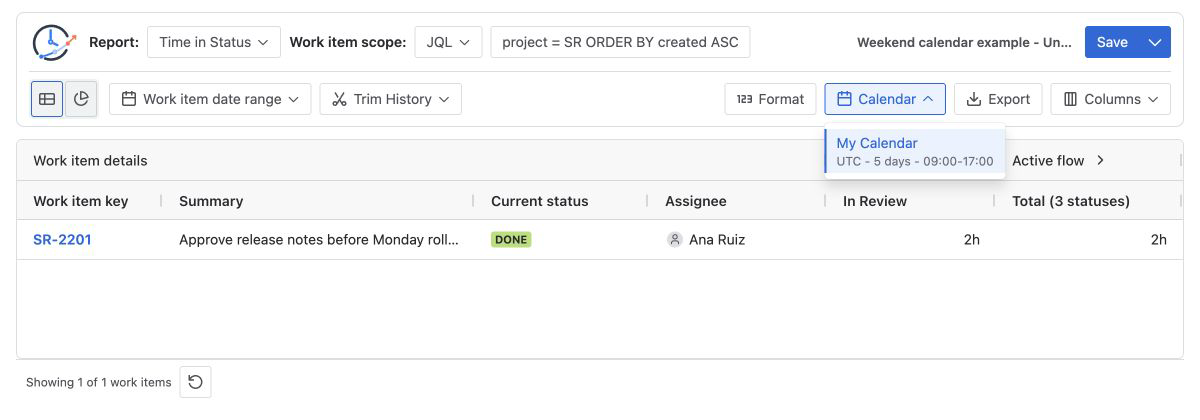
Configure business time in StatusPath Reports
- Select Time in Status, Average Time in Status, or Time in Assignee. Calendar rules apply to duration reports, not Status Count or Transition Count.
- Choose the work-item scope: Project, saved Filter, JQL, Sprint, or Epic. See Report setup and scope.
- Check Work item date range and Trim History. Clipping an interval is different from excluding non-working time.
- Select a calendar with the intended timezone, weekdays, daily intervals, holidays, and one-off exceptions.
- Select a duration format that communicates the result clearly. Calendar determines which time counts; Format determines how it is displayed.
- Manually reconcile one simple interval before applying the configuration to a large scope.
The StatusPath calendar documentation describes weekly intervals, timezone handling, date exceptions, and duration formats. If Monday in the example were a configured holiday, only Friday’s one hour would count. If Monday were a special working day, its exception hours would replace the normal Monday schedule.
Why timezone and history boundaries matter
A working schedule has meaning only in a timezone. The same Jira timestamp can be inside business hours in one region and outside them in another. Use the service team’s timezone for staffed support hours, the delivery team’s timezone for engineering-flow analysis, or an agreed operational timezone for a multi-region service.
Atlassian explains that the Jira Software Control Chart calculates cycle or lead time from selected workflow statuses. Atlassian’s cited Control Chart documentation applies to company-managed spaces. When comparing it with another report, confirm report availability, the same status set, item scope, timeframe, board working days, and current-status handling. A board report and an app report can use the same history but different calendars.
Common mistakes
Excluding weekends but still counting nights
Monday-Friday alone does not define a business day. Add daily intervals such as 09:00-17:00.
Changing Format instead of Calendar
Converting hours to days changes presentation, not the working-time schedule. Select the correct calendar when the goal is to exclude non-working time.
Sharing one calendar across incompatible teams
A single schedule can misrepresent different regions, shifts, or weekend patterns. Use separate calendars when operational hours differ.
Forgetting holidays or special working days
Maintain date exceptions deliberately and check which timezone owns the date boundary.
Treating a growing current status as a calculation error
A current status has no later change to a different status, so it can continue growing until the report end time. Use a fixed history end when reproducing an older result.
Frequently asked questions
Does excluding weekends remove the work item from the report?
No. Scope and work-item date filters decide whether the item is included. The calendar changes the counted duration inside its status intervals.
Do holidays count like weekends?
Only when the selected calendar defines them as non-working exceptions. Otherwise the normal weekday schedule applies.
Should customer waiting time exclude weekends?
Not necessarily. Elapsed time represents total customer waiting; business time represents scheduled operational time. Many teams keep both metrics and label them explicitly.
Do business calendars affect Status Count?
No. Status Count and Transition Count measure events. Trim History can change which events are counted, but a working schedule does not convert counts into durations.
Related Guides
- Jira Business Calendars for Workflow Reporting
- Configure Jira Business Hours and Holidays for Status Reports
- How Time Zones Affect Jira Status Duration and Trend Reports
- How to Calculate Jira Active Workflow Time Excluding On Hold
- How to Calculate Time in Status in Jira Cloud
Make the calendar part of the metric definition
“Time in Review” is incomplete unless the reader also knows whether it means elapsed or business time, which timezone applies, and which exceptions were used. Save that configuration with the report and verify one item manually before using the result in a review or target.
Try StatusPath Reports on the Atlassian Marketplace to apply reusable work calendars to Jira duration reports.