
Report Setup and Scope
The main report page is the full StatusPath Reports workspace. Use it when you need to analyze a set of Jira work items, not just the work item you are currently viewing.
Issue Activity is for one current Jira work item. Dashboard Gadget is for a compact dashboard tile. Use the main report page for full report building, review, saving, charting, and export.
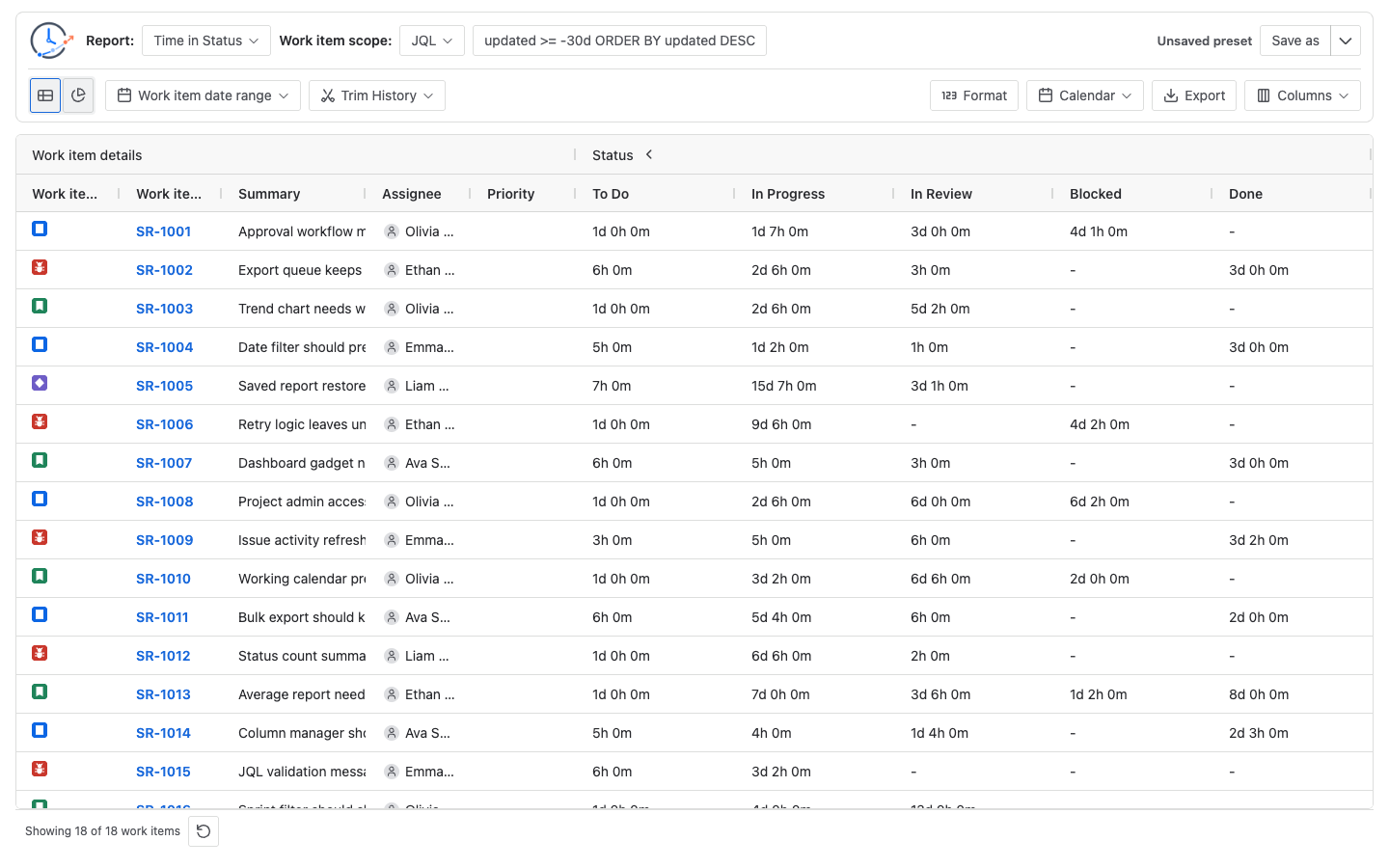
Page layout
The main page has two toolbar rows above the result area.
The first toolbar row is for report setup:
- Report chooses the analysis type.
- Work item scope chooses where the work items come from.
- The source input changes based on the selected scope.
- Saved report controls show the current preset and let you save or manage presets.
The second toolbar row is for result and display controls:
- Table and Chart switch the result view.
- Work item date range filters which work items enter the report.
- Trim History limits which part of each selected work item’s history is calculated.
- Format appears for duration-based reports and changes how duration values are shown.
- Calendar appears for duration-based reports and chooses the work schedule for business-time calculations.
- Export downloads report output from the current report configuration.
- Columns opens the table column manager when table data is available.
Basic workflow
- Choose a report type.
- Choose a work item scope.
- Configure Work item date range and Trim History only if you need them.
- Choose Table or Chart.
- Review the report result.
- Save the setup or export the result if you need to reuse or share it.
Use the Jira workflow review checklist when the result will support a workflow change; it keeps scope, calculation rules, representative histories, and the decision log together.
Report selector
The Report menu changes what the report calculates. The main page selector includes:
- Time in Status
- Average Time in Status
- Time in Assignee
- Status Count
- Status Entry Date
- Transition Count
Choose Time in Status when you want the most direct view of how long each work item spent in each workflow status. Use the other reports when you need averages, assignee time, status entry counts, first status entry dates, or transition counts.
See Report types for a detailed comparison.
Work item scope
Work item scope controls which work items are selected for the report.
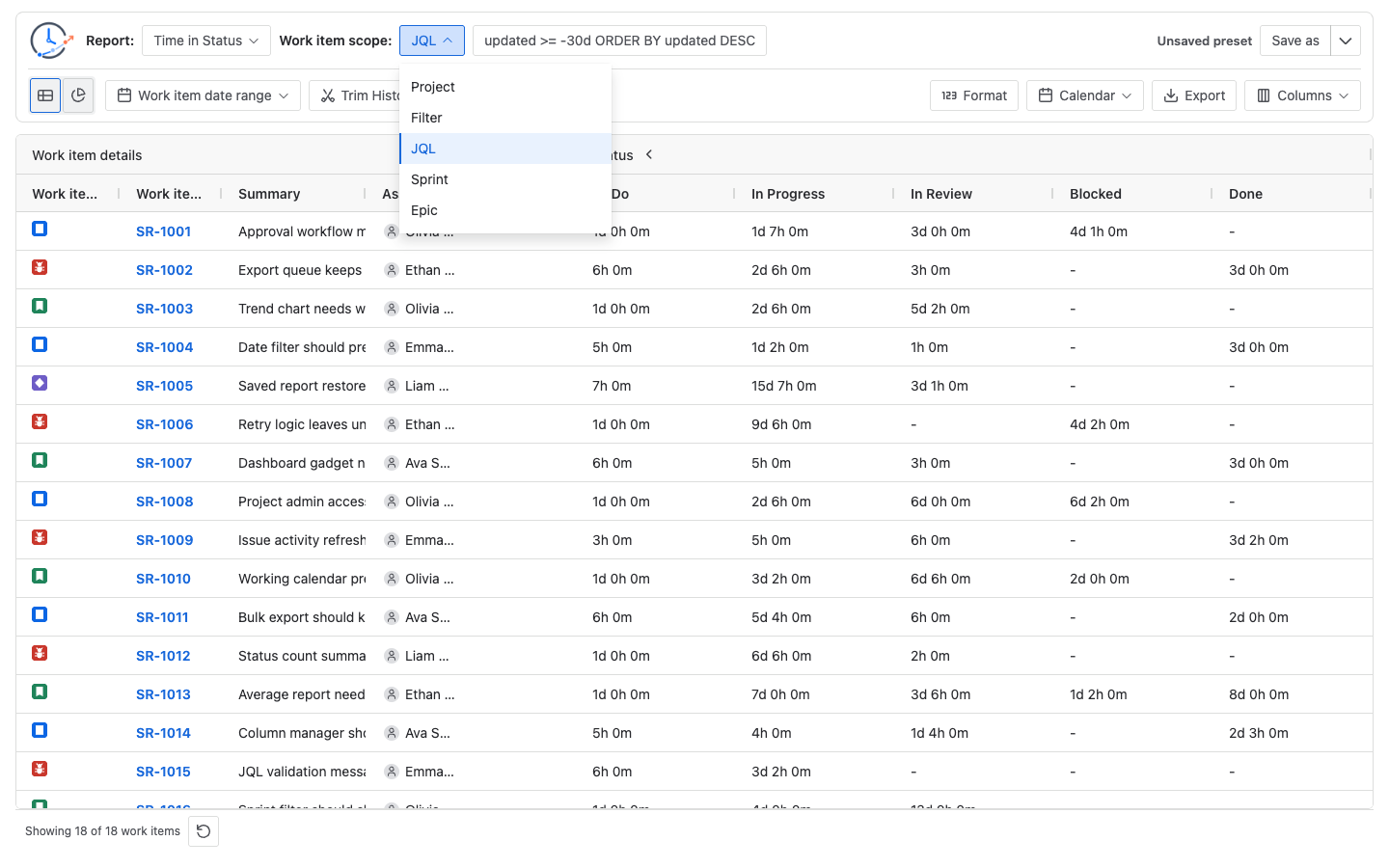
| Scope | Use it when | What to select |
|---|---|---|
| Project | You want a project-level report. | A Jira project. |
| Filter | Your team already has a saved Jira filter for the work you want to report on. | A Jira saved filter. |
| JQL | You need a custom query that is more specific than Project, Filter, Sprint, or Epic. | A JQL query. |
| Sprint | You want to report on a Jira Software sprint. | A board first, then a sprint. |
| Epic | You want to report on work items under one epic. | An epic. |
Changing the work item scope can rerun the report because it changes the set of work items being analyzed.
For the governance decision behind these controls—ownership, reuse, board dependency, and acceptance evidence—use the Project vs Filter vs JQL vs Sprint vs Epic Guide.
Scope options
Project
Project selects work items from one Jira project. Use it for a simple project-level report or when starting analysis before you need a more specific query.
Results may be empty if the project has no matching work items, Work item date range removes the project work items, or the current Jira user cannot browse the project or view matching work items.
Saved filter
Saved filter uses an existing Jira saved filter as the work item source. Use it when your team already maintains a filter for a board, release, team, support queue, or reporting view.
The report uses the selected filter as the source and then applies any Work item date range you configure in StatusPath Reports. Results may be empty if the saved filter returns no work items for the current user, is too narrow, is reduced by Work item date range, or includes work items the current user cannot view.
JQL
JQL lets you enter a Jira Query Language expression directly.
Use JQL when Project, Filter, Sprint, or Epic is not precise enough. JQL is useful when you need to combine project, status, work item type, assignee, priority, labels, dates, or other Jira fields.
project = SR AND updated >= -30d ORDER BY updated DESCThe app validates JQL with Jira before applying or running it. If Jira rejects the query, the report does not run until the query is fixed.
When the app builds the final report query, it removes an existing ORDER BY from the entered JQL before appending the report’s own ordering and date clauses. This keeps the final Jira query valid when Work item date range or table sorting is applied.
Sprint
Sprint selects work items from a Jira Software sprint. Choose Sprint for sprint reviews, retrospectives, or delivery analysis for one sprint.
Choose a board first, then choose the sprint. The board selection is required so the sprint picker can show the right sprint options.
Epic
Epic selects work items under one epic using Jira’s parent relationship. Use Epic when you want to analyze delivery flow for one epic and its child work.
Results may be empty if the epic has no visible child work items, Work item date range removes the epic’s child work items, or the current user cannot view the epic or matching child work.
Work item date range
Work item date range filters selected work items by a Jira date field. It can use Created date, Updated date, or Resolved date.
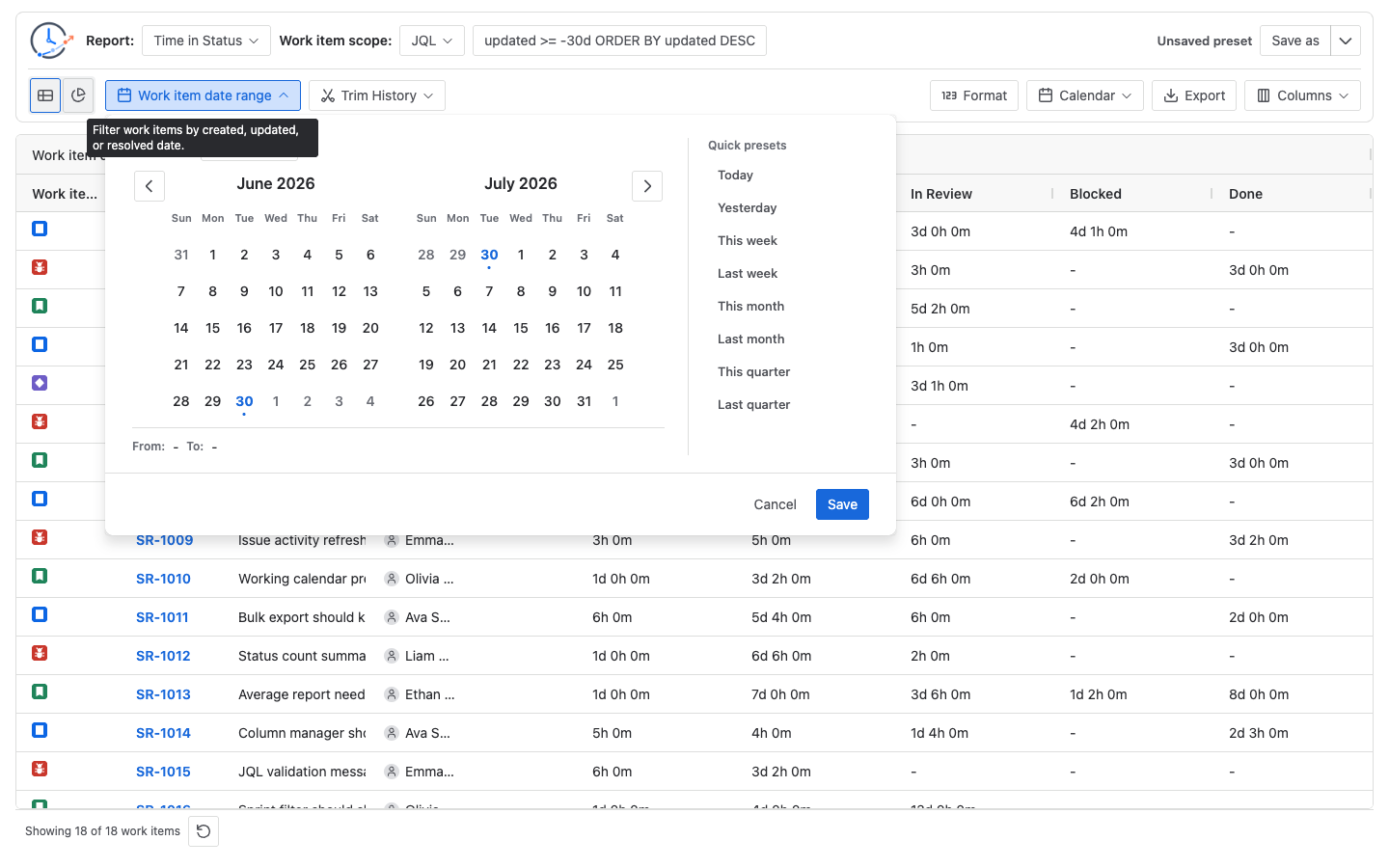
Use this control when you want to answer questions such as:
- Which work items were created this month?
- Which work items were updated in the last 30 days?
- Which work items were resolved last quarter?
Work item date range changes which work items enter the report. It does not decide how much status or assignee history is calculated for those work items. If you choose Resolved date, unresolved work items may be excluded because they do not have a resolved date.
Trim History
Trim History limits the changelog or history window used by the calculation.
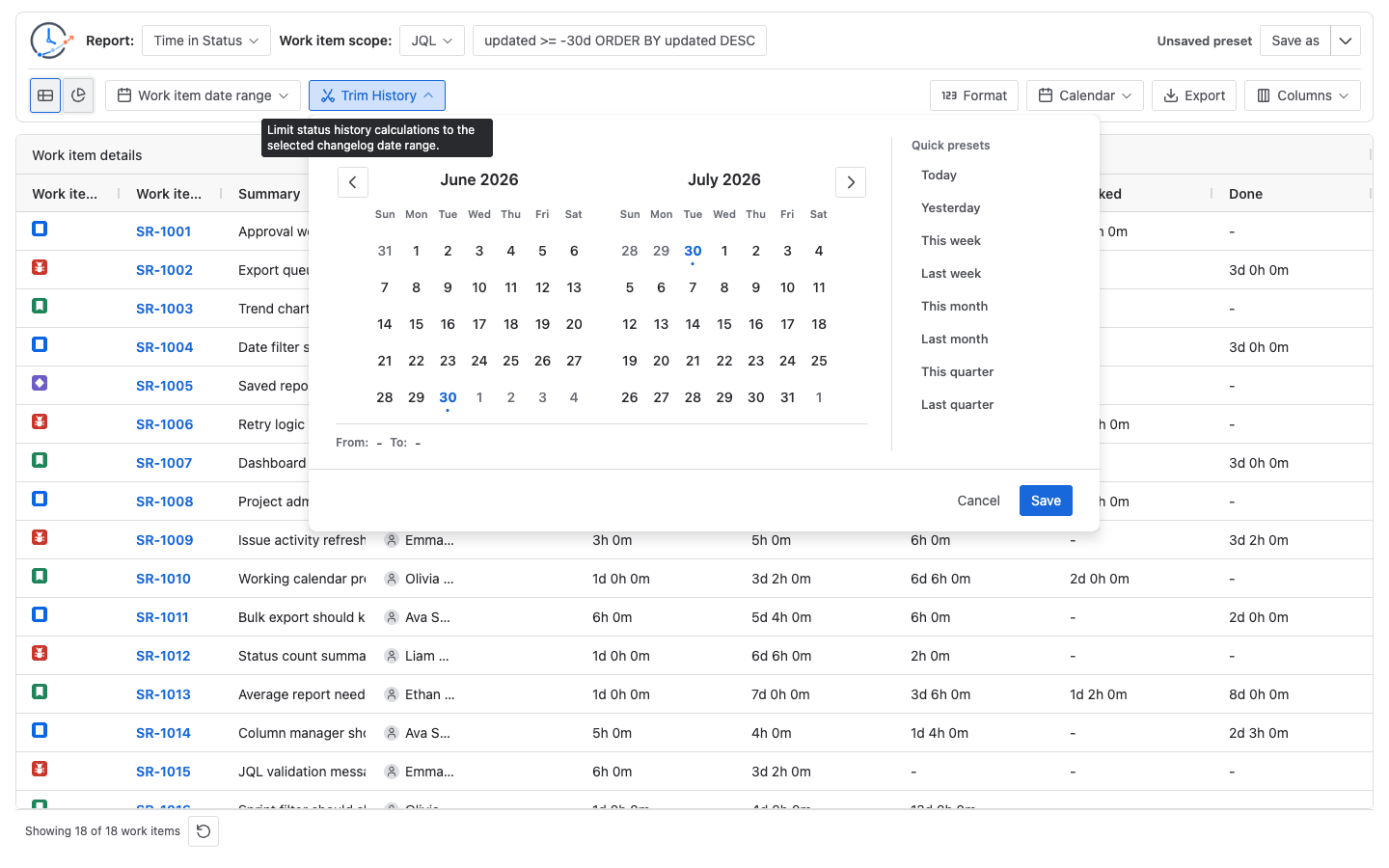
Use Trim History when you want to calculate only part of the selected work items’ history, such as status time during a quarter. It can affect:
- Time in Status durations
- Average Time in Status values
- Time in Assignee durations
- Status Count values
- Status Entry Date values
- Transition Count values
Trim History does not select work items by itself. It only changes how selected work items are calculated.
For Status Entry Date, “first” means the first entry found inside the calculated history window. If Trim History excludes an earlier entry, the displayed value can differ from the first entry in the work item’s full Jira history. Status Entry Date does not provide latest-entry or every-entry modes.
| Control | What it changes |
|---|---|
| Work item scope | Which work items are selected. |
| Work item date range | Which selected work items enter the report, based on a work item date field. |
| Trim History | Which part of each selected work item’s history is used for calculation. |
If a work item exists in Jira but does not appear in the report, check Work item scope and Work item date range first. If it appears but the numbers look too small or blank, check Trim History.
Result controls
Table view is the detailed report view. Use it to inspect individual work items, columns, durations, counts, and dates.
Chart view summarizes report data visually. It is useful for bottlenecks and trends, but it depends on the selected report and available data. If Chart view is empty or not useful, switch back to Table and confirm the report has data that fits the chart.
Format and Calendar appear for duration-based reports. Format changes how duration values are presented. Calendar chooses the work schedule used for business-time duration calculations.
Export creates a CSV or XLSX copy from the current report configuration and supported table state. For per-work-item reports, export loads the complete result for that configuration rather than only the initial 50 rows loaded in the table, then applies supported filters, sorting, hidden columns, and column order. Average Time in Status instead exports the current calculated grouped table rows. See Export for the full behavior. Columns opens the table column manager for work item fields, status or assignee duration columns, status groups, assignee groups, and table layout options supported by the selected report.
Saved report controls
Saved report controls show whether the current setup is unsaved or restored from a preset. Use Save as to store a reusable setup. If a restored preset has changes, the primary preset action can update that preset.
Saved reports store report configuration, not a frozen copy of Jira data. When you restore and run a saved report later, Jira data and Jira permissions still affect the result.
Common mistakes
- Confusing Work item date range with Trim History. Work item date range selects work items; Trim History clips calculation history.
- Running JQL that is too broad for the report you want to read.
- Expecting work items the current Jira user cannot view to appear in the report.
- Choosing Chart when the selected report or current data does not produce a useful chart.
- Reading Dashboard Gadget setup instructions and assuming they explain the full main report page.
- Saving a preset and expecting it to freeze results. Saved reports store setup; they do not freeze Jira data.