
Saved Reports
Saved reports let you keep a reusable main report setup and restore it later. Use them for recurring team reports, monthly reviews, support queues, sprint analysis, or any report configuration you do not want to rebuild by hand.
Saved reports are presets. They are not frozen copies of Jira data.
For a repeatable naming, ownership, acceptance, versioning, rerun, and export method around these controls, use the reusable Jira workflow report Guide.
Where saved reports appear
The current preset area is in the top-right of the main report page. It shows the active preset state and the primary save action.
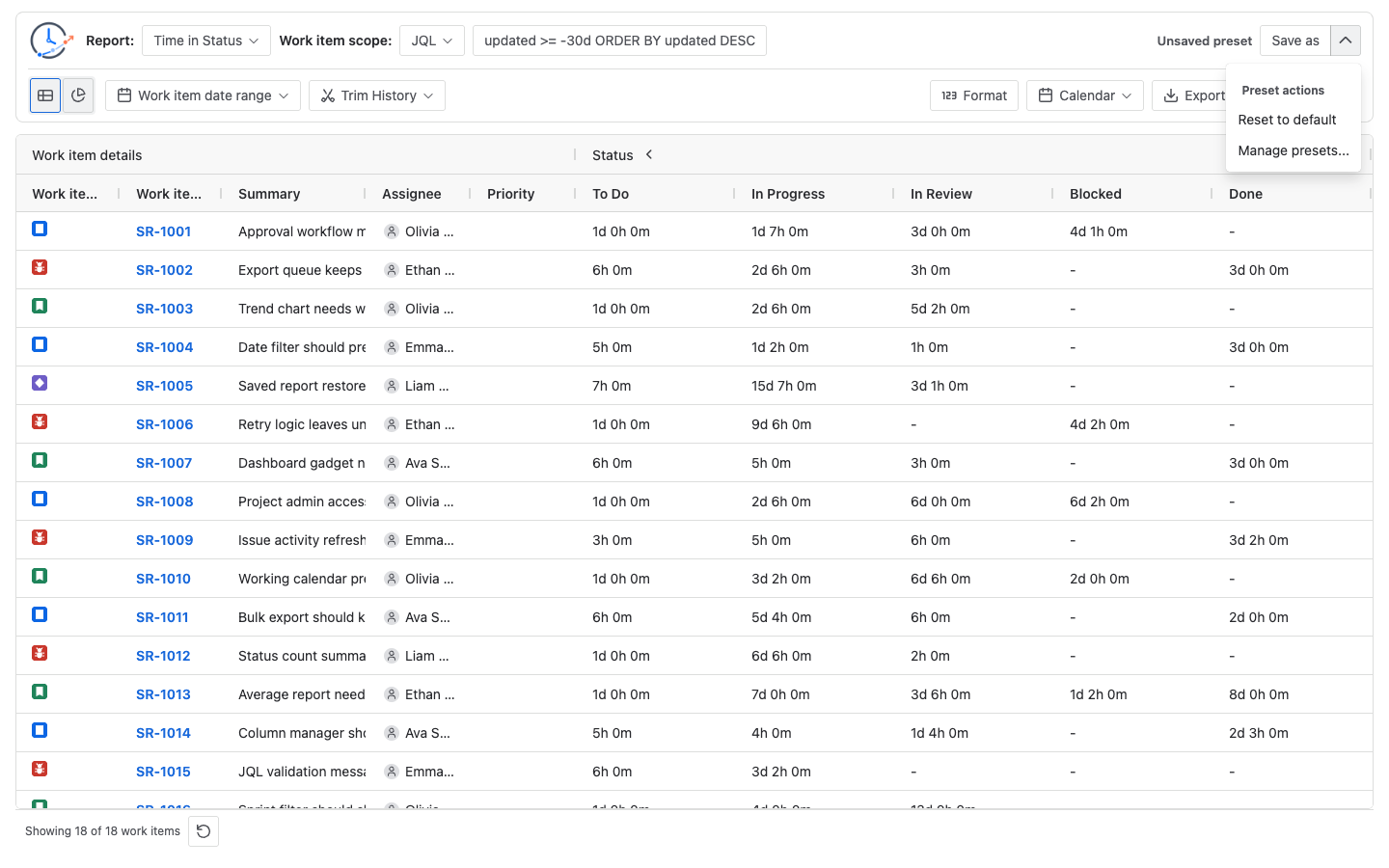
Common states are:
| State | What it means |
|---|---|
| Unsaved preset | The current setup is a draft that has not been saved as a named preset. |
| Preset name | A saved preset is selected and matches the current setup. |
| Preset name - Unsaved | A saved preset is selected, but the current setup has changes that have not been saved back to that preset. |
Save a new preset
Use Save as when you want to create a named preset from the current setup.
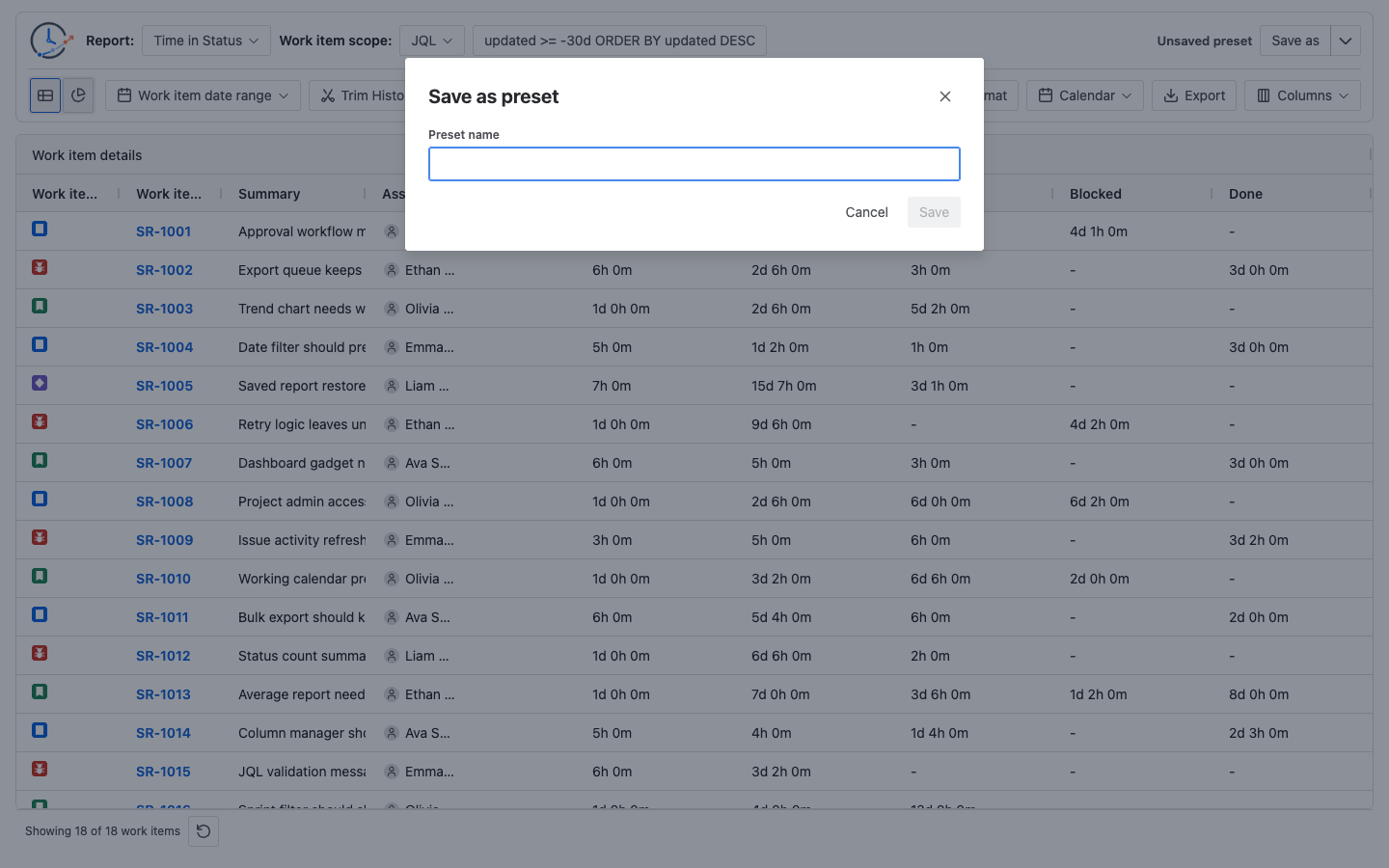
After the preset is saved, it becomes the current preset. Running the preset later will use the saved configuration, but it will query current Jira data.
What a saved report stores
A saved report stores the configuration needed to rebuild the report setup, including:
- Report type
- Work item scope, such as project, saved filter, JQL, sprint, or epic
- Work item date range
- Trim History
- Duration Format
- Selected Calendar id
- Table or Chart view
- Selected work item fields
- Selected status, assignee, or transition columns
- Status groups or assignee groups where applicable
- Sorting and supported filters
- Duration filters
- Average Time in Status group-by settings
- Time in Status chart settings
The saved Calendar value is the selected calendar id. It does not freeze a copy of the calendar’s working hours or exceptions. If an admin later edits that calendar, a restored preset can use the updated calendar definition.
What a saved report does not store
A saved report does not store:
- The result rows currently visible in the table
- A frozen copy of Jira work items
- A frozen copy of Jira changelog history
- The downloaded CSV, XLSX, or chart export file
- The progress state of a running report
- Open modal, popover, or menu state
- A guaranteed permission boundary between users
When you restore and run a preset, StatusPath Reports queries Jira again. The result can change if work items, permissions, statuses, changelogs, saved filters, calendars, or Jira field values have changed.
Restore a saved preset
Open Preset actions, choose Manage presets, then use a saved preset.
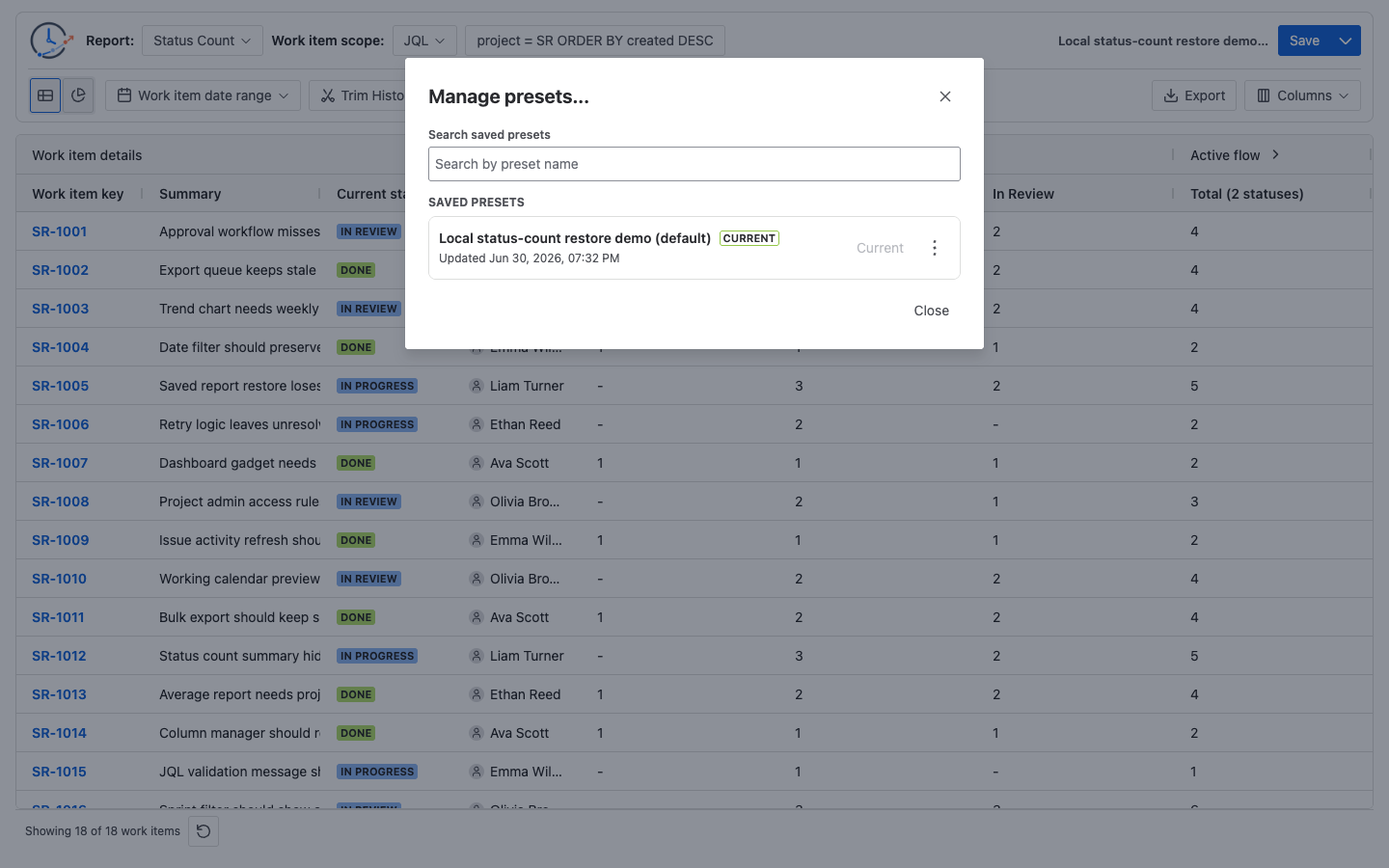
Restoring a preset updates the main report controls. If the restored setup is ready to run, use Run report or review the table/chart state shown by the page.
If a restored preset references an unavailable source, unsupported report type, missing status column, or stale Jira field, the page may need adjustment before it can run cleanly.
Update, copy, rename, and delete
When a saved preset is selected and you change the setup, the primary action changes to Save. Use it to update the selected preset.
Use Manage presets for preset management:
- Use restores a preset.
- Rename changes the preset name.
- Copy creates a new preset from an existing preset.
- Delete removes the preset.
Delete does not delete Jira work items. It only removes the saved preset configuration.
Default presets and drafts
The saved report storage model supports a default preset, and the manager can show a (default) label when a preset is marked as default.
The current Manage presets UI does not expose a separate Set as default action. If a default preset already exists, it can be listed and restored like other presets. Do not assume every user can choose a default from the current manager until that action is visible in your Jira site.
The app can remember the active unsaved draft setup so the main report can recover your latest working configuration. An unsaved draft is not named, is not shown as a reusable row in Manage presets, can be replaced by later draft changes, and should not be used as a stable team reporting setup.
Save a named preset when the configuration is important or should be reused.
Access and permissions
Saved presets are stored by the app. Jira permissions still apply when the preset runs. A saved preset cannot show work items that the current Jira user cannot browse.
Do not use saved preset names for confidential information. The current implementation stores owner information when a preset is created, but the saved report list and management routes should be verified in your Jira site before treating saved presets as private per-user records.
Limits and validation
The current saved report storage limit is 100 presets. If saving fails because the limit is reached, delete an old preset first.
When saving a preset that uses JQL, the app validates the JQL before saving. If Jira rejects the query, fix the JQL and save again.
Common issues
- Restored preset returns different rows: Jira data, saved filter results, permissions, calendar settings, or changelog history may have changed.
- Save is unavailable: check that the report source is configured and the preset name is not blank.
- Save fails for a JQL preset: fix the Jira validation error before saving.
- A status column is missing after restore: the current data may not include that status history, or the saved status configuration may no longer match the Jira workflow.
- A saved filter preset returns no data: open the saved filter in Jira as the same user and confirm it still returns work items.
- A copied preset is not selected automatically: Copy creates a new saved preset, but it does not replace the active preset until you choose Use.