
Calendars and Duration
Format and Calendar control how StatusPath Reports displays and calculates duration values. They matter for Time in Status, Average Time in Status, and Time in Assignee.
Format changes how a duration is displayed. Calendar changes which working time is counted for business-time calculations.
| Control | What it changes | What to check |
|---|---|---|
| Format | How duration values are displayed in the table, charts, filters, and exports. | Units such as business days, decimal days, hours, minutes, or HH:MM. |
| Calendar | Which working schedule is used when duration values are calculated. | Working days, business hours, timezone, and exceptions. |
Duration format
Format changes how duration values are presented. It does not replace the selected Calendar.
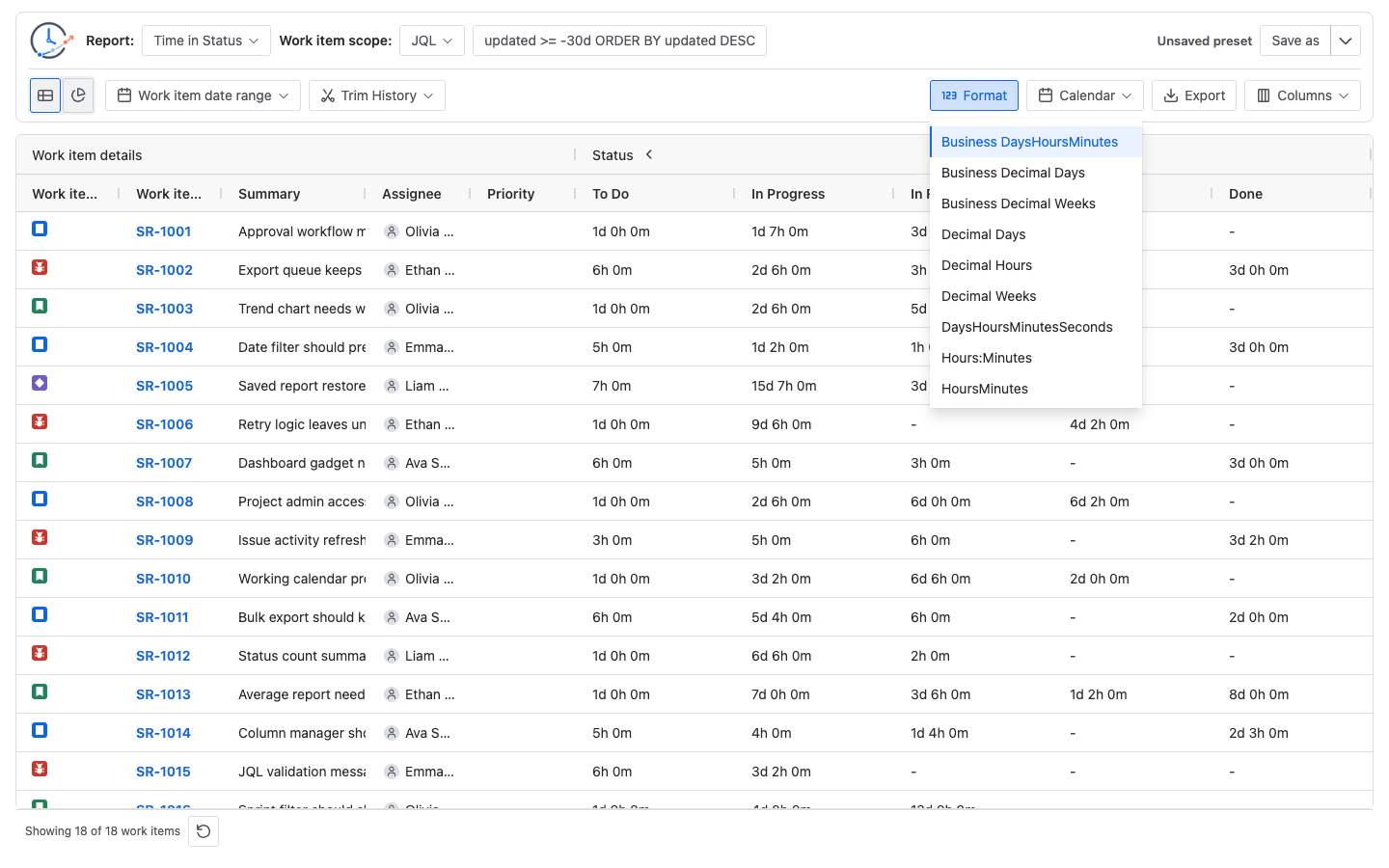
For table results, the main report includes formats such as:
- Business DaysHoursMinutes
- Business Decimal Days
- Business Decimal Weeks
- Decimal Days
- Decimal Hours
- Decimal Weeks
- DaysHoursMinutesSeconds
- Hours:Minutes
- HoursMinutes
- Minutes
In Chart view, trend charts use a shorter numeric format list such as Business Decimal Days, Business Decimal Weeks, Days, Hours, and Minutes. Time in Status Top Bottleneck keeps the fuller table-style duration formats.
Use business formats when the reader should think in working days or working weeks. Use decimal or clock-style formats when the reader needs easier numeric comparison, spreadsheet work, or compact chart labels.
Changing Format can make the same duration easier or harder to read, but it should not be treated as the control that chooses the work schedule. To change which hours count, use Calendar.
Working calendar
Calendar chooses the working schedule used by duration calculations.
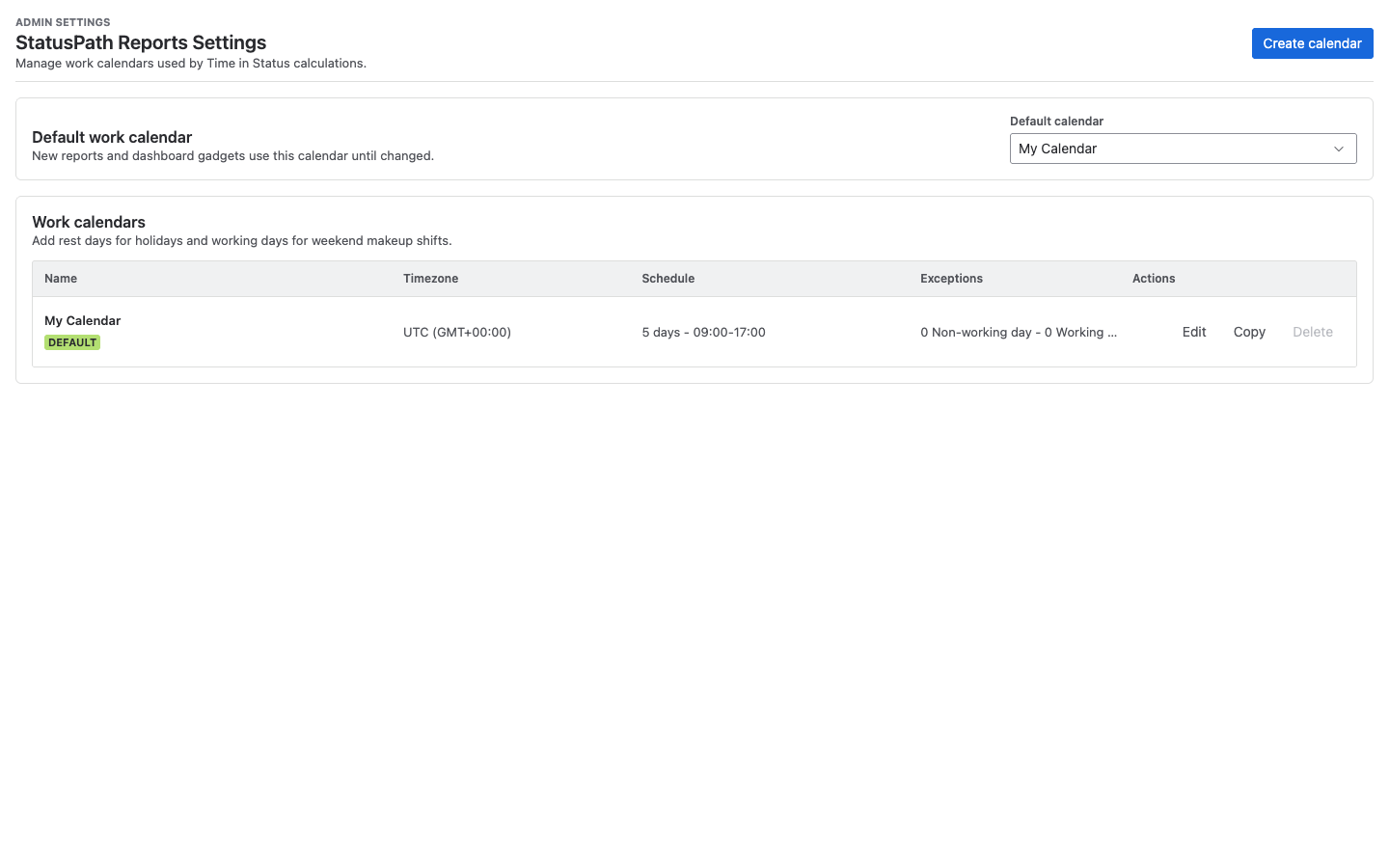
The default work calendar is named My Calendar. Its built-in default schedule is:
- Timezone: UTC
- Working days: Monday to Friday
- Working hours: 09:00 to 17:00
Admins can manage work calendars from the app settings page.
A work calendar can define:
- Timezone
- Weekly working days
- One or more working-hour intervals
- Different intervals for specific weekdays
- Non-working date exceptions
- Working-day date exceptions
- Yearly repeated exceptions
When a report calculates duration, it counts only the overlap between a status or assignee segment and the selected calendar’s working intervals. If the selected calendar has no working time during part of the segment, that part does not add duration.
Business hours
Business hours are the working intervals inside a calendar. They are not just a label.
For example, if a work item enters Blocked on Friday evening and leaves Blocked on Monday morning, a Monday-Friday 09:00-17:00 calendar may count little or no Blocked time across the weekend. A calendar with longer days, weekend work, or a different timezone can produce a different number for the same work item.
This is why the same work item can show different duration values after you switch Calendar. The status history did not change. The calculation window changed.
Which reports are affected
Format and Calendar matter for duration reports:
- Time in Status
- Average Time in Status
- Time in Assignee
Status Count, Status Entry Date, and Transition Count are not duration reports in the current main report UI. They show counts, dates, or transition counts rather than duration values, so the duration Format and Calendar controls are not the main way to interpret those report types.
Trim History can still affect all report types because it clips the history window used for calculation. Work item date range can also affect all report types because it changes which work items enter the report.
Effects on table, charts, and export
Table
Duration columns use the selected Calendar for calculation and the selected Format for display. This affects status duration columns, assignee duration columns, total duration values, group duration values, and duration filters.
If you change only Format, the table may show the same result in a different unit. If you change Calendar, duration values may be recalculated because different working intervals are counted.
Charts
Duration charts follow the active Format and Calendar behavior where those controls are available.
Time in Status Top Bottleneck uses duration values from the report result. Status Time Trend and shared duration trend charts format their y-axis values with the active chart duration format.
Count and date charts do not become duration charts because a duration format exists elsewhere in the app.
Export
Table export formats duration values through the report export path using the current report configuration. That means exported duration values follow the selected duration Format and Calendar behavior for duration reports.
Chart export exports the current visual chart. If the chart is a duration chart, verify the selected Format and Calendar before exporting.
Why results may differ from another app
Two apps can read the same Jira work item and still report different duration values. Common reasons include:
- Different working calendars or business hours
- Different timezones
- Different holiday or exception rules
- Different handling of weekends and overnight time
- Different Trim History or history window
- Different status names, status categories, or status grouping
- Different handling of the current status for unresolved work items
- Different rounding and display formats
- Different Jira changelog access or permission boundaries
When comparing with another plugin, compare one work item and one status first. Confirm the selected Calendar, timezone, history window, and display unit before comparing a full report.
For a distributed team, use How to Report Jira Workflow Time Across Multiple Regions to choose between a shared service Calendar and separately scoped regional reports before comparing their results.
Common mistakes
- Changing Format and expecting it to change working hours.
- Comparing a business-hours report with a report that counts all clock time.
- Comparing results without checking timezone.
- Forgetting that Trim History can remove earlier status or assignee history.
- Expecting Status Count, Status Entry Date, or Transition Count to respond like duration reports.
- Exporting a report before confirming the selected Format and Calendar.