BlueGrove Labs

Installation

Install StatusPath Reports from Atlassian Marketplace, then open it from Jira Cloud to begin creating reports.

Atlassian Marketplace availability may depend on your Jira site, billing setup, and administrator permissions.

When to use this

Use this page when your team is preparing to install StatusPath Reports or when users cannot find the app after installation.

Before you begin

  • You need Jira administrator permissions to install Marketplace apps.
  • Your Jira Cloud site must allow Marketplace app installation.
  • Confirm that your organization policy allows workflow reporting apps.
  • StatusPath Reports is a Jira Cloud Forge app, not a Jira Data Center app.

Steps

  1. Open your Jira Cloud site.
  2. Go to Apps and open Explore more apps.
  3. Search for StatusPath Reports - Time in Status for Jira.
  4. Open the Marketplace listing.
  5. Review the app details, permissions, and licensing information.
  6. Install the app.
  7. Return to Jira and open StatusPath Reports from the Apps menu or configured app location.

Result

The app should be available in Jira Cloud. Users with permission to access the app can open it and create reports based on Jira issues they are allowed to view.

Notes

Required Jira permissions depend on the task:

  • Site administrators install and manage the app.
  • Jira users need permission to view the issues included in a report.
  • Project or board permissions may affect sprint, epic, and filter based reporting.
  • The app may request Jira work item read access, Jira user read access, Jira Software board and sprint read access, workflow/status read access, dashboard property read/write access, and Forge app storage.

First admin checks:

  1. Open StatusPath Reports Settings.
  2. Review the default work calendar.
  3. Create or edit a work calendar if the default schedule does not match your team.
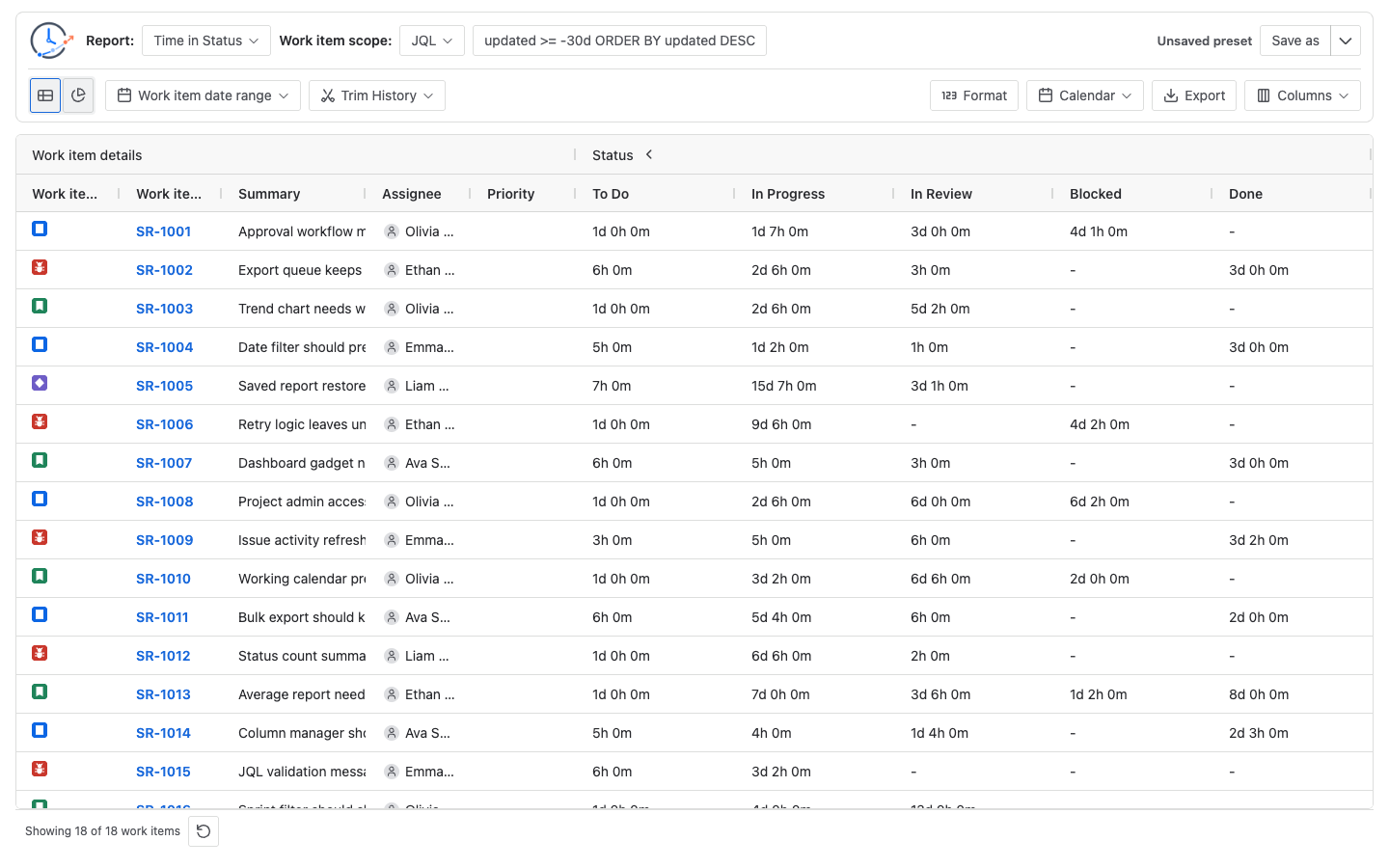
  4. Open the report center and run a small Project or JQL report.
  5. Add a Dashboard Gadget only after the report center can load the same data source successfully.

Before Marketplace publication or production rollout, verify installation, Jira REST access, Forge Storage, saved reports, Dashboard Gadget edit/view, dashboard item property persistence, Issue Activity, and export behavior in an authenticated Jira Cloud site.

If a user cannot see an issue in Jira, StatusPath Reports cannot include it for that user.

Troubleshooting

If the app entry does not appear after installation, refresh Jira, check the Apps menu, and confirm that the app is enabled. If users still cannot access it, review app access and Jira permission settings with a Jira administrator.