
Issue Activity Analysis Reports
StatusPath Reports Issue Activity provides compact analysis reports for the current Jira work item. From one work item, you can inspect where it spent time, who it was assigned to, and whether it moved through the workflow repeatedly.
Where it appears
Issue Activity is registered as a Jira issue activity module. In Jira, open a work item and look for the app entry in the work item activity area. The module receives the current work item context from Jira and loads that work item’s details and changelog.
The module does not ask you to choose a work item scope. There is no Project picker, Saved filter picker, JQL box, Sprint picker, or Epic picker in Issue Activity because the scope is always the current work item.
What it is for
Issue Activity is useful when you are reviewing a single work item and want a quick answer before opening a full report.
Use it to answer questions like:
- Which status held this work item the longest?
- Did the work item spend time with more than one assignee?
- Did it enter the same status more than once?
- Did it move back and forth between the same statuses?
For backlog, sprint, team, or release analysis, use the main report page instead. Issue Activity is intentionally smaller and does not include saved report presets, Columns Manager, table export, or multi-work-item chart controls.
Basic workflow
- Open a Jira work item.
- Open the StatusPath Reports Issue Activity entry in the work item activity area.
- Choose a report and then Chart or Table.
- For duration reports, choose the Format and Work schedule if you need to change how time is displayed and calculated.
- Use Refresh if the work item changed while you were reviewing it.
Analysis report choices
The Analysis Reports area supports four report choices:
| Report | What it shows | Best question |
|---|---|---|
| Time in Status | Time spent in each status for the current work item. | Where did this work item wait? |
| Time in Assignee | Time spent assigned to each assignee for the current work item. | Who owned this work item, and for how long? |
| Status Count | How many times the current work item entered each status. | Did this work item revisit the same status? |
| Transition Count | How many times the current work item moved from one status to another. | Which workflow moves repeated? |
Time in Status
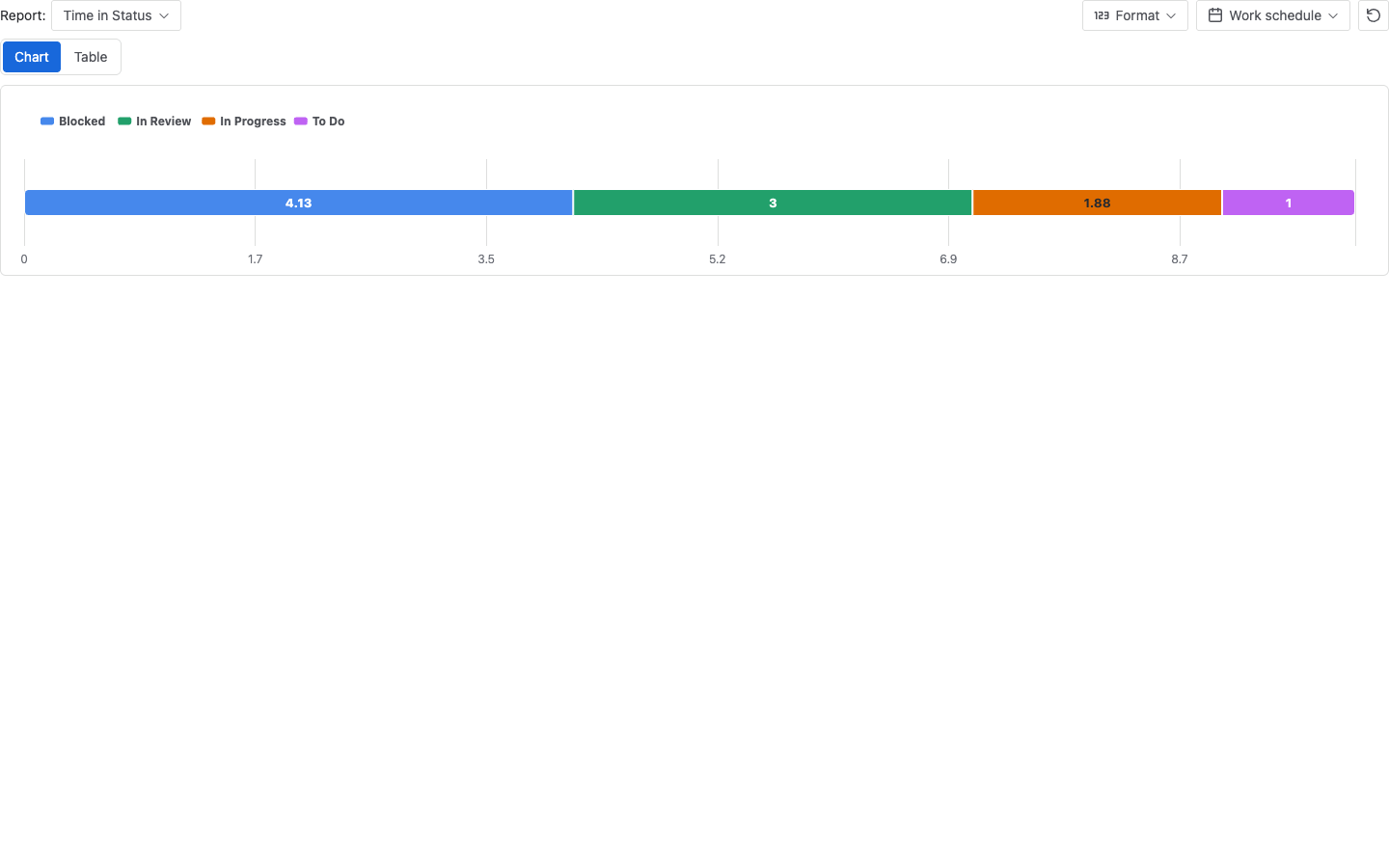
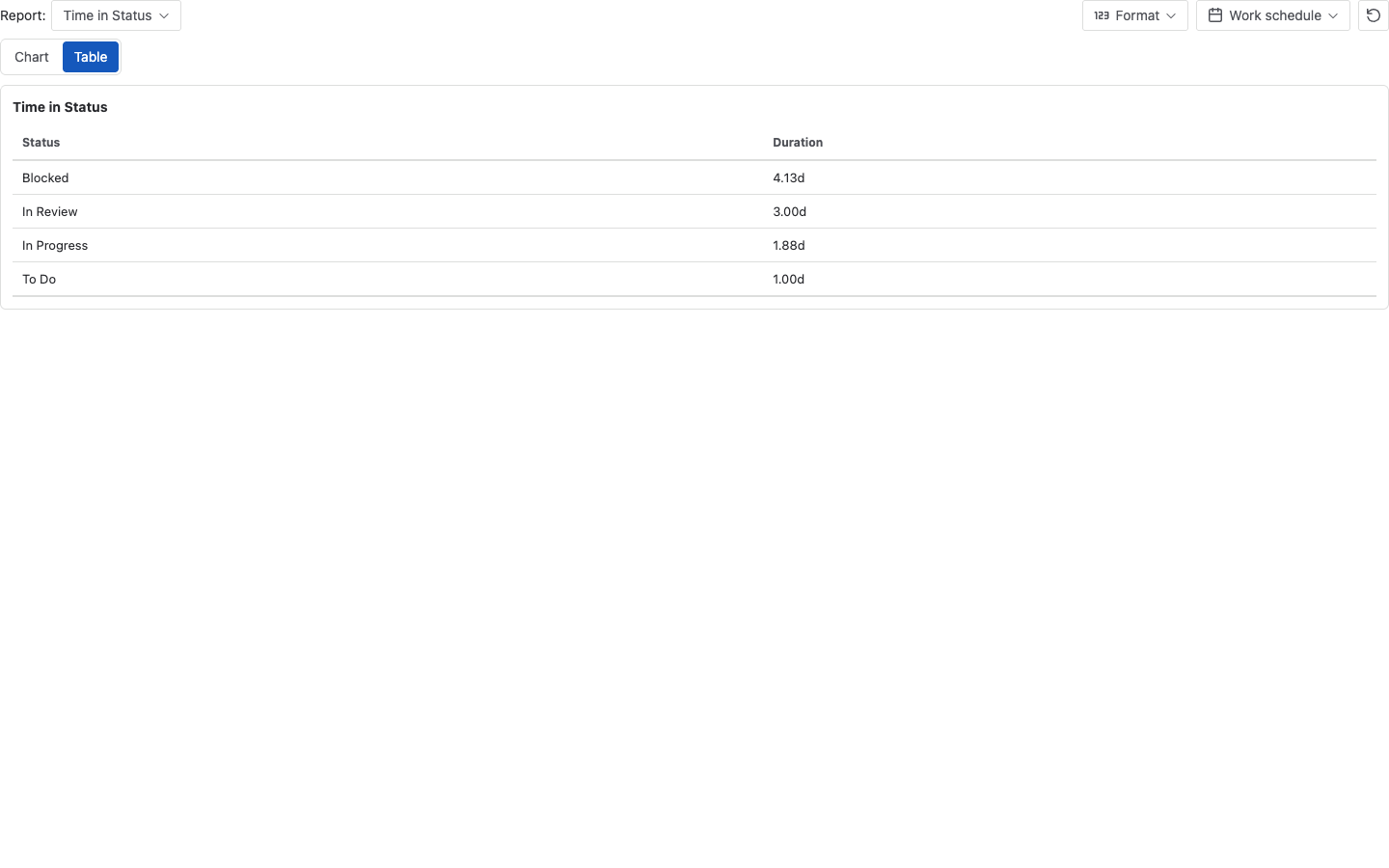
Time in Status shows the duration accumulated by the current work item in each status. In Chart view, the module shows a compact single-work-item breakdown. In Table view, it lists each status and its duration.
Use this report when a work item feels slow and you want to see whether the delay was mainly in To Do, In Progress, In Review, Blocked, Done, or another workflow status.
Duration values use the selected Work schedule. The Format control changes how the duration is displayed, such as business days or hours and minutes.
Time in Assignee
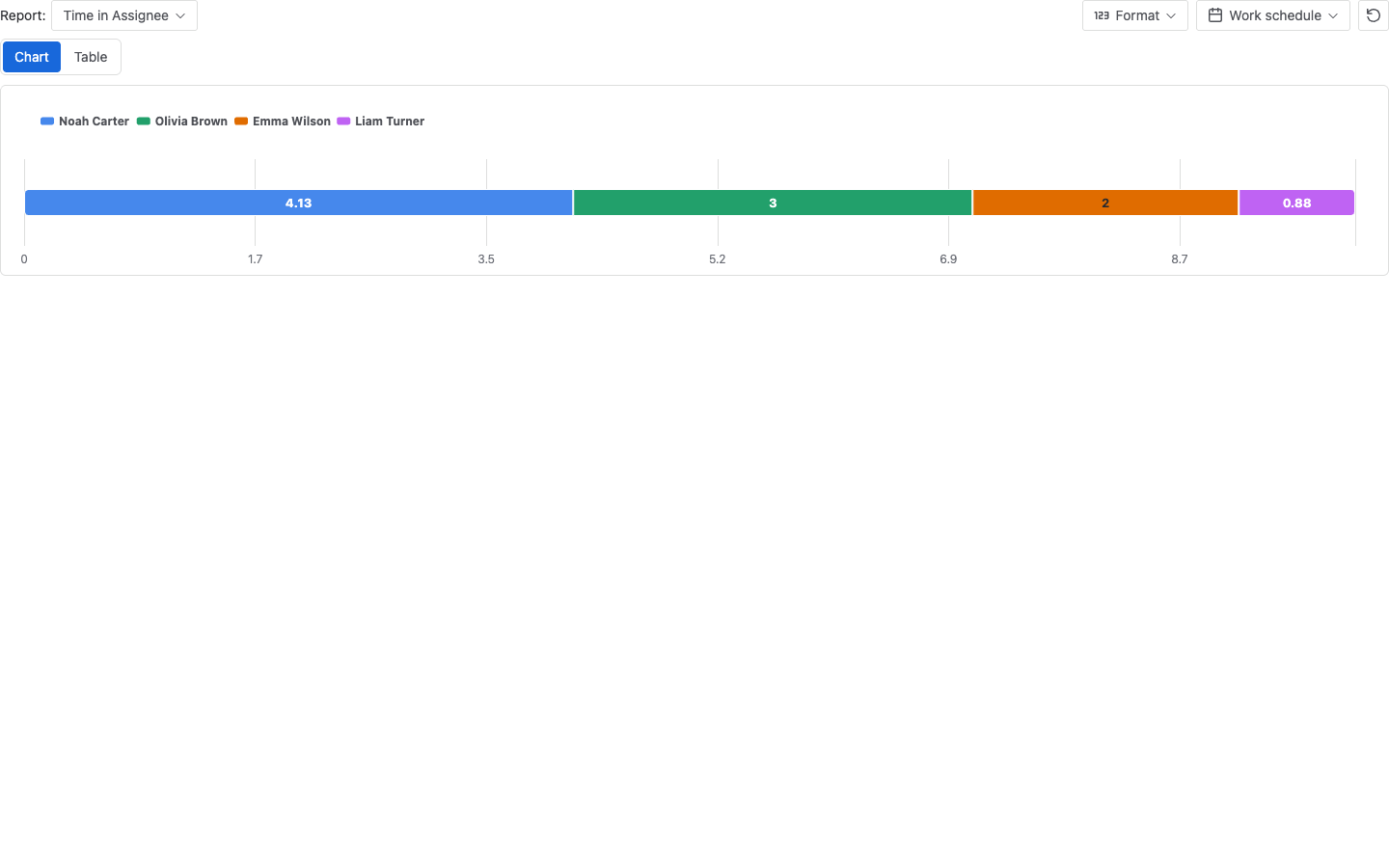
Time in Assignee shows the duration accumulated under each assignee for the current work item. In Table view, the first column is Assignee and the second column is Duration.
Use this report when ownership changed during the work item lifecycle or when you need to understand how long the work item stayed with a person or unassigned state.
Like Time in Status, this is a duration report. Format and Work schedule controls are available.
Status Count
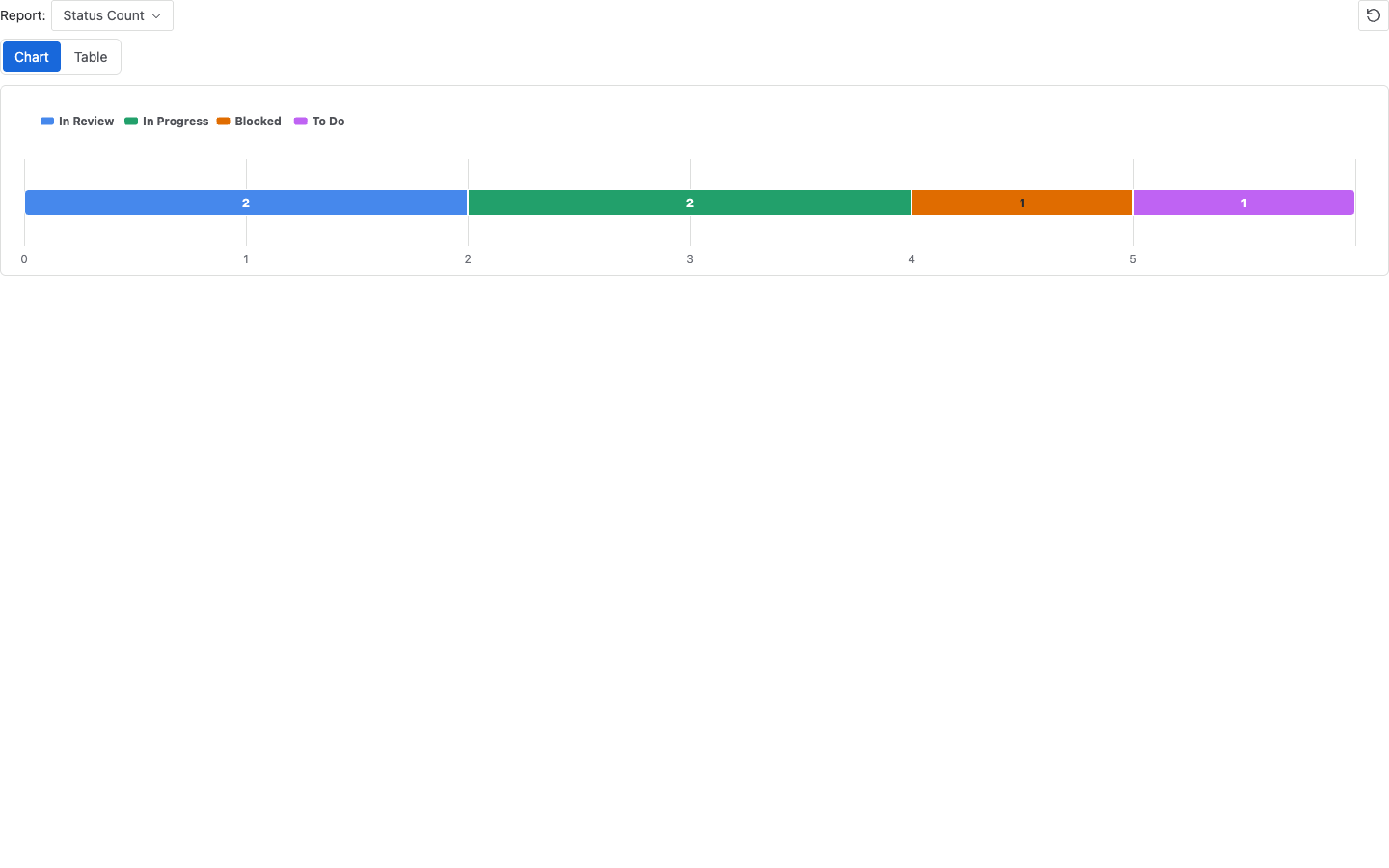
Status Count shows how many times the current work item entered each status. It is a count report, not a duration report, so Format and Work schedule controls are not shown for this report.
Use it to spot repeated status entries. For example, a work item that entered In Review multiple times may have gone through several review cycles.
Transition Count
Transition Count shows repeated moves from one status to another, such as In Review > In Progress or Blocked > In Progress. It is also a count report, so it does not use duration Format or Work schedule controls.
Use it when you want to understand workflow loops or repeated handoffs for the current work item.
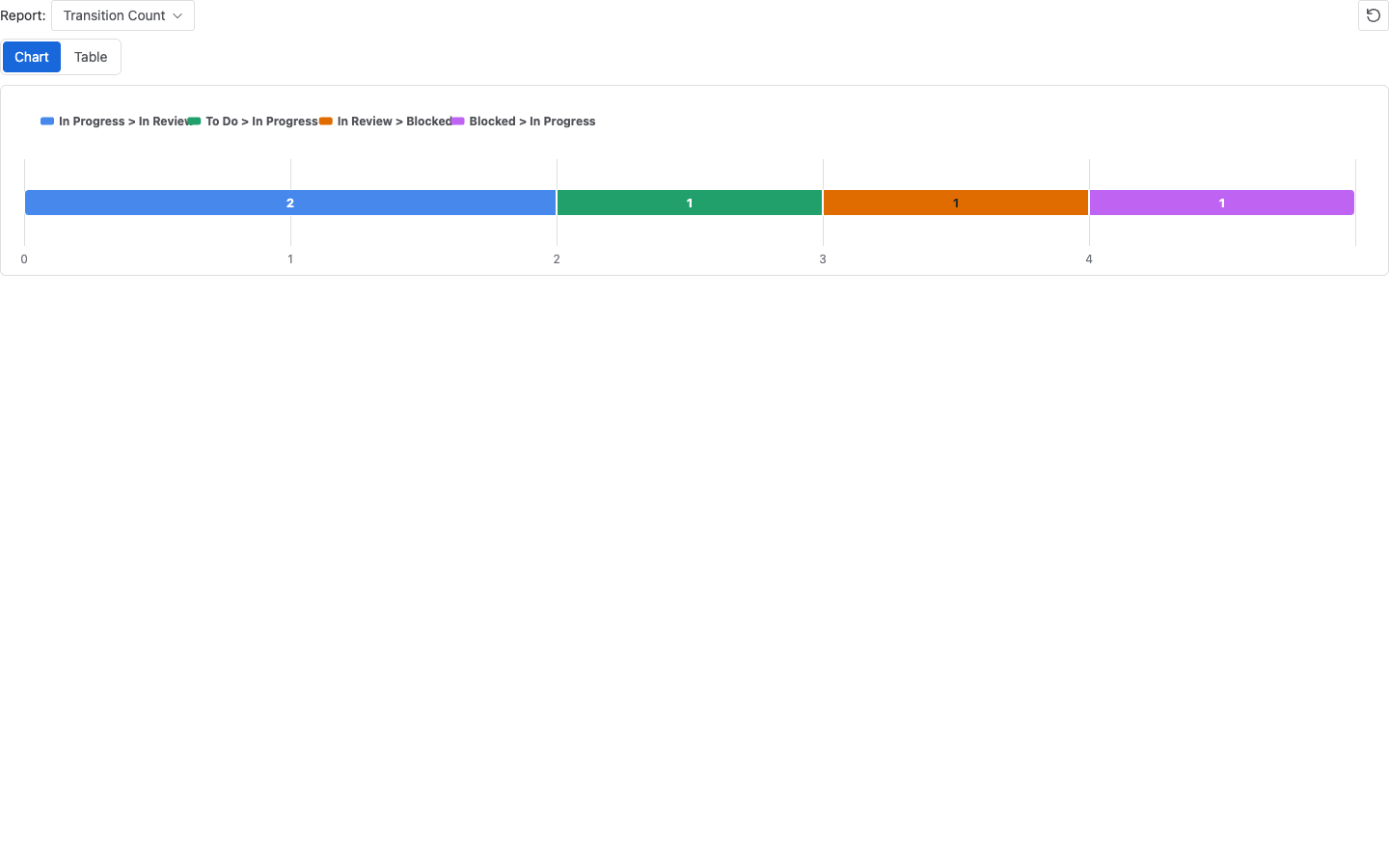
Chart and table views
Chart view is useful for a quick visual breakdown. It shows one work item and divides the bar into status, assignee, or transition segments depending on the selected report.
Table view is useful when you need exact values. Duration reports show a name column and a Duration column. Count reports show a Status or Transition column and a Count column.
The visible Issue Activity UI is the report selector, Chart/Table switch, duration controls for duration reports, the chart or table result, and Refresh.
Format and Work schedule
Format and Work schedule appear for Time in Status and Time in Assignee.
Format changes the way duration values are presented. Work schedule selects the working calendar used for duration calculation. If you change the work schedule, the same work item can show different duration values because non-working time may be counted differently.
Status Count and Transition Count do not use those controls because their result is a count.
Refresh and work item changes
Issue Activity has one Refresh control for manually reloading the current work item data used by its analysis reports. In Jira, the module also listens for changes to the current work item and can refresh after a matching issue-change event.
If you just changed the work item’s status, assignee, or other details, refresh the module before comparing the result with the main report page.
How it differs from the main report page
| Area | Issue Activity | Main report page |
|---|---|---|
| Scope | Current Jira work item only. | Many work items selected by Project, Saved filter, JQL, Sprint, or Epic. |
| Purpose | Quick single-work-item analysis from the work item page. | Full report building, review, saving, charting, export, and Average issue drill-down. |
| Report choices | Time in Status, Time in Assignee, Status Count, and Transition Count under Analysis Reports. | Full main report selector, including additional report types. |
| Table | Compact two-column report table. | AG Grid table with configurable fields, dynamic columns, sorting, and filters. |
| Charts | Compact single-work-item chart. | Multi-work-item chart views and trend charts where supported. |
| Saved reports | Not shown in Issue Activity. | Save, restore, update, rename, and delete presets. |
| Export | No table export action in Issue Activity. | CSV and XLSX table export from the main report page. |
Why Issue Activity may be empty
Issue Activity may show an empty state when the selected report has no matching history for the current work item.
Common reasons include:
- The current work item has no status changelog available, so Time in Status or Status Count cannot show meaningful history.
- The work item never changed assignee, or there is no assignee history available for Time in Assignee.
- The work item did not move between statuses, so Transition Count has no transitions to count.
- The current Jira user cannot access the work item or its changelog data.
- The work item changed recently and the module needs to be refreshed.
- The selected Work schedule counts no working time for the relevant period, so duration values can be zero or absent.
If you need to compare the work item with other work items, open the main report page and run a focused report with a narrow work item scope.