
Getting Started
Use this page to run your first report and understand the basic workflow.
Start with Time in Status if you want the most direct view of how long each work item spent in each workflow status.
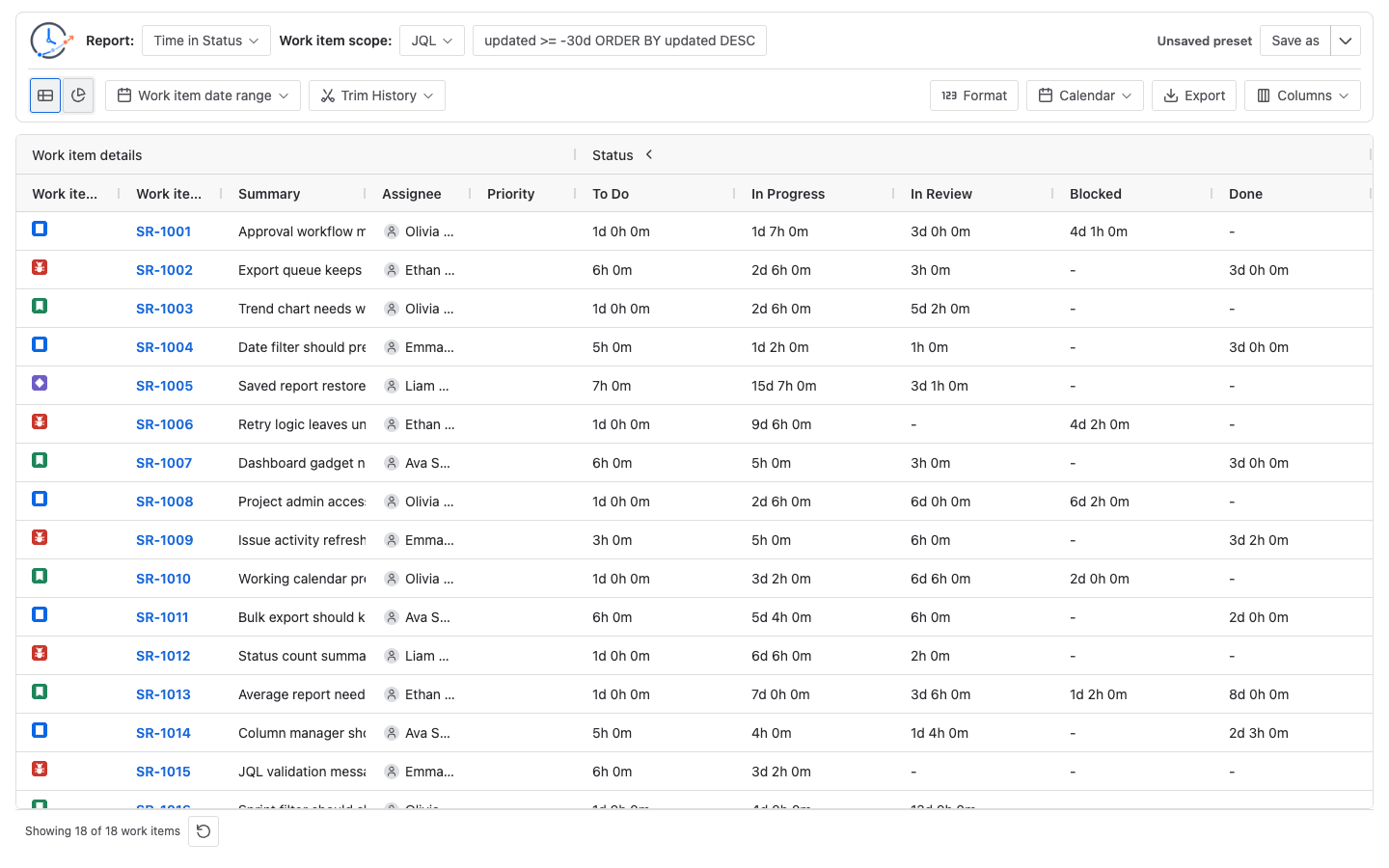
Create your first report
- Open StatusPath Reports in Jira.
- Choose Time in Status from the Report menu.
- Choose a Work item scope: Project, Filter, JQL, Sprint, or Epic.
- Set Work item date range only if you want to limit which work items are included.
- Set Trim History only if you want the calculation to use a smaller history window.
- Review the table, then switch to Chart view when charts are useful for the selected report.
- Save the setup or export the result if needed.
What the first report shows
Time in Status shows one row per work item and duration columns for workflow statuses found in the selected data. A blank status cell usually means that work item did not enter that status during the calculated history window.
If the report is empty
- Confirm the selected Project, Filter, JQL, Sprint, or Epic returns work items in Jira.
- Confirm the current Jira user can view those work items.
- Check whether Work item date range filters out the work items.
- Check whether Trim History removes the status or assignee changes you expected to calculate.
Next pages
- Read Report setup and scope before diving into advanced options.
- Use Report types to choose the right analysis.
- Use Table view and Columns and grouping to customize the result.
- Use Chart view to inspect bottlenecks and trends.
- Use Saved reports and Export when you need to reuse or share results.