
How Time Zones Affect Jira Status Duration and Trend Reports
See how a work-calendar timezone changes Jira business-time duration while the Jira display timezone controls Status Time Trend bucket boundaries.
A timezone does not change when a Jira transition occurred, but different timezone controls do different jobs. In StatusPath Reports, the selected Calendar timezone is part of the Jira business-calendar definition and defines the local working periods used for business-time duration and Trim History dates. Status Time Trend bucket boundaries use the report display timezone loaded from the Jira user context, with a browser and then calendar fallback. Record both timezones: changing Calendar can change the plotted values without changing the timezone that defines the x-axis buckets, although the set of visible bucket labels can still change when a Calendar leaves a bucket with no plotted duration.
Separate the calendar timezone from the trend timezone
StatusPath reads transition timestamps from Jira changelog history. Atlassian documents the issue changelog API and explains in the Jira Cloud REST API timestamp guidance that top-level timestamps use ISO 8601 representation, with a separate rendered-fields option for the logged-in user’s timezone. Preserve the offset or normalize timestamps to one instant before doing arithmetic.
Jira presentation and search have their own timezone contexts:
- An authenticated user can choose the timezone used for date and time information across Jira apps in Jira personal settings.
- A Jira administrator can set the site’s default user timezone, which users can override.
- Atlassian’s JQL fields reference documents timezone-relative behavior for supported date fields, using the searching user’s configured timezone or the Jira default when the user has not set one.
Those contexts do not replace the selected StatusPath Calendar. The Calendar timezone controls working-time overlap. StatusPath uses the Jira current user’s timezone for report display and trend buckets when available; if it is unavailable, the product falls back to the browser timezone and then the Calendar timezone. Record the JQL/search timezone, the Calendar timezone, and the report display timezone as separate inputs.
Reproducible Jira scenario: UTC versus Shanghai
This example uses demonstration work items in a reproducible Jira report scenario.
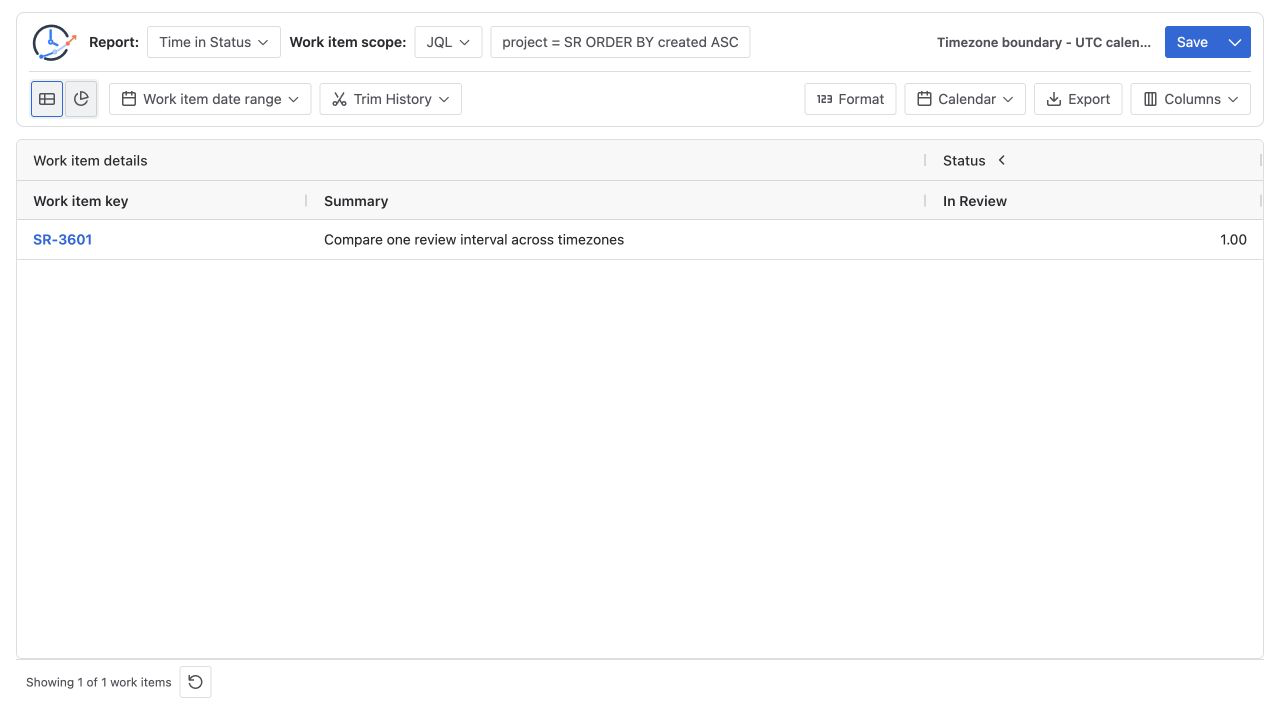
One work item enters In Review at 2026-07-06 16:30Z and leaves at 2026-07-07 09:30Z. The interval spans 17 elapsed hours. Compare two Monday-Friday, 09:00-17:00 working calendars:
| Calendar | Timezone | Weekly hours |
|---|---|---|
| Weekdays 09:00-17:00 UTC | UTC | Monday-Friday, 09:00-17:00 |
| Weekdays 09:00-17:00 Shanghai | Asia/Shanghai | Monday-Friday, 09:00-17:00 |
Keep the Jira population, status, complete history window, and Decimal Hours format identical. Change only the selected calendar.
UTC result: one business hour
In UTC, the interval overlaps two short working segments:
| UTC segment | Counted time |
|---|---|
| Monday, July 6, 16:30-17:00 | 0.5 hour |
| Tuesday, July 7, 09:00-09:30 | 0.5 hour |
| Total | 1 hour |
Shanghai result: eight business hours
The same instants are Tuesday, July 7, 00:30-17:30 in Asia/Shanghai. The local interval covers the complete 09:00-17:00 working day:
| Shanghai segment | Counted time |
|---|---|
| Tuesday, July 7, 00:30-09:00 | 0 hours |
| Tuesday, July 7, 09:00-17:00 | 8 hours |
| Tuesday, July 7, 17:00-17:30 | 0 hours |
| Total | 8 hours |
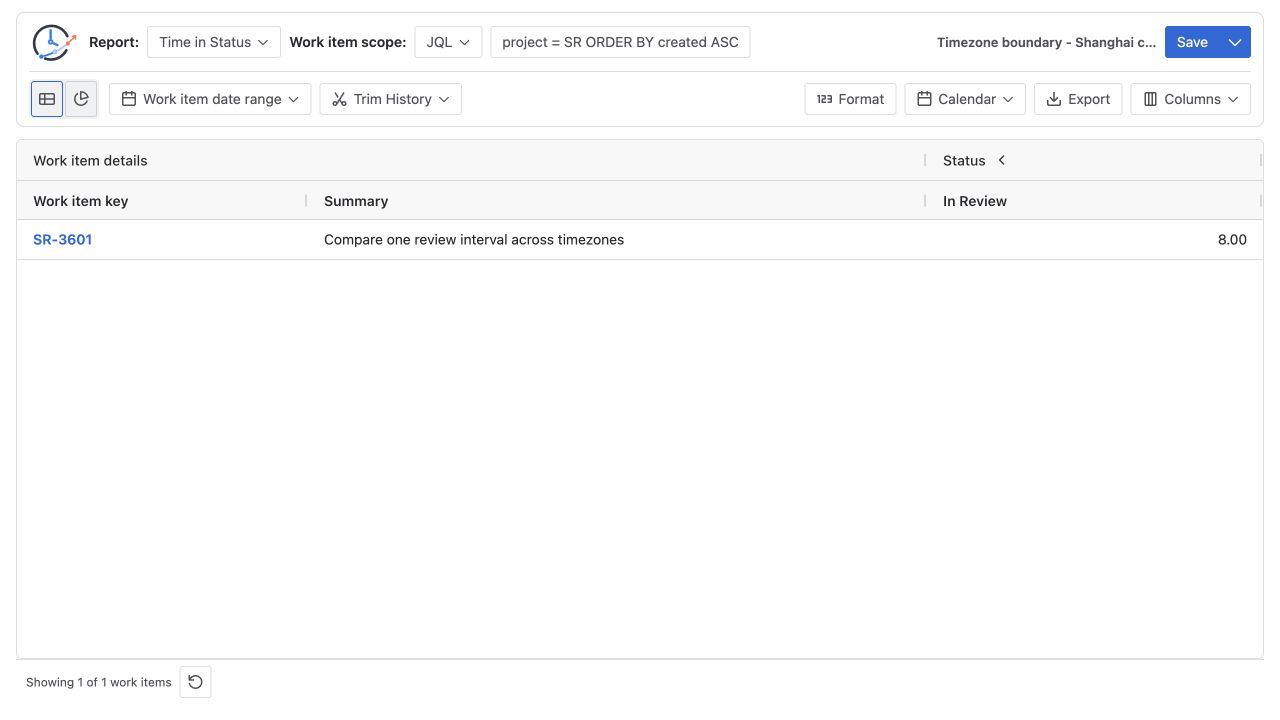
The 1-hour and 8-hour values are both valid for their written calendar definitions. Neither implies that Jira changed the transition history.
Read the trend with the display timezone fixed
The two half-hour UTC segments reconcile the table result, but the area chart is not a segment-by-segment rendering of that arithmetic. In this reproducible run, the Jira/report display timezone and selected status set are held constant while only Calendar changes:
| Comparison | UTC Calendar run | Shanghai Calendar run |
|---|---|---|
| Calendar timezone | UTC | Asia/Shanghai |
| Table value for In Review | 1 hour | 8 hours |
| Trend display timezone | Asia/Shanghai | Asia/Shanghai |
| Visible In Review point on July 7 | 1 hour | 8 hours |
| Other visible status series | To Do and Done have plotted values | No non-zero To Do or Done series is visible |
| Selected status set | Unchanged | Unchanged |
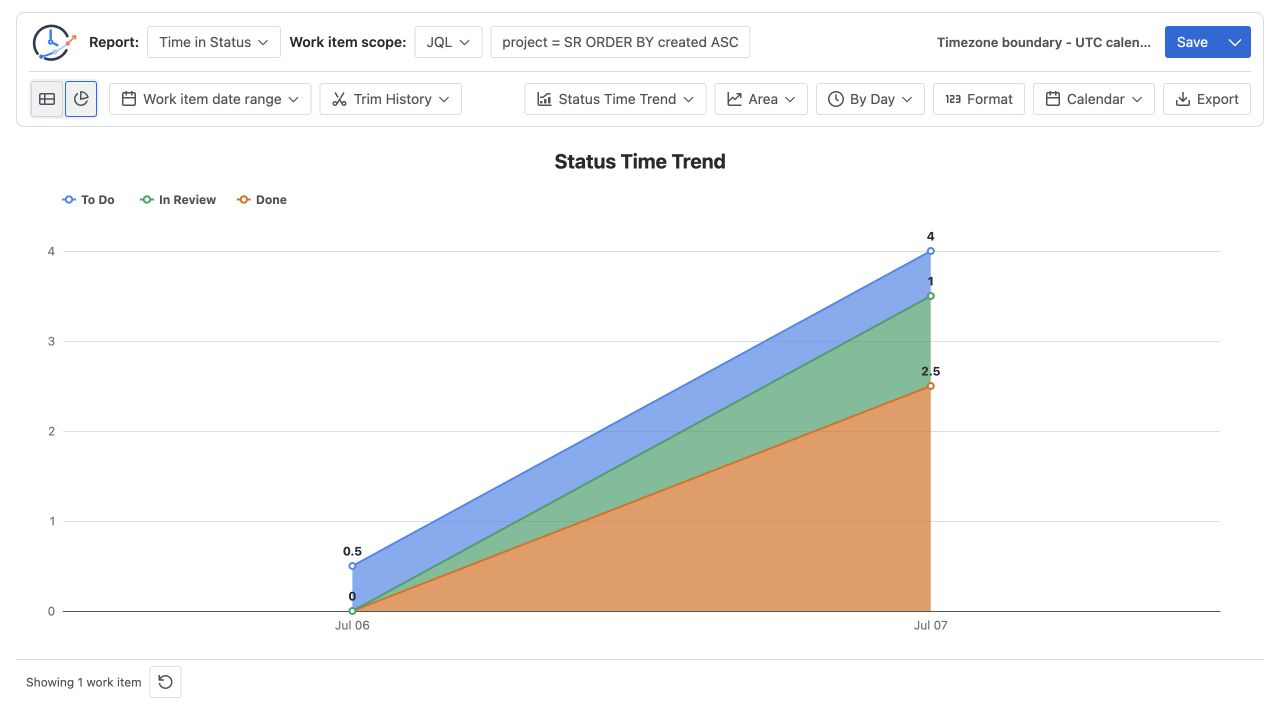
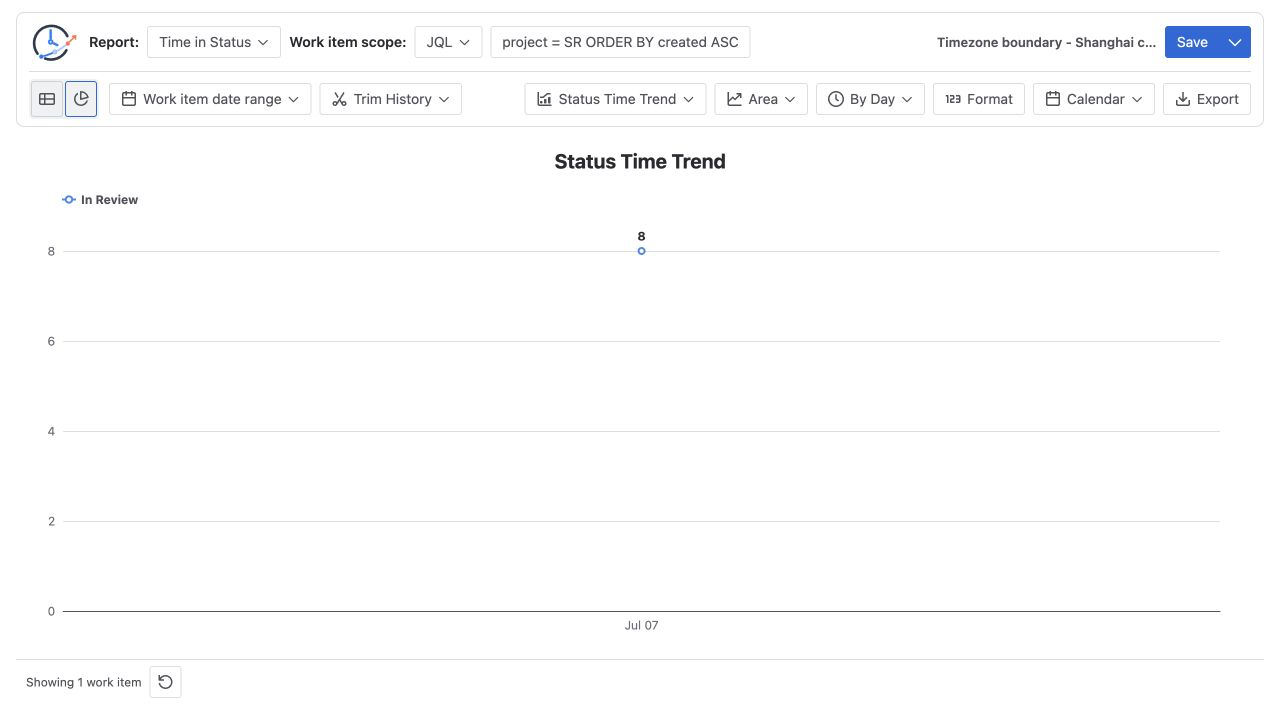
The UTC screenshot visibly includes To Do and Done values, while the Shanghai screenshot visibly plots only In Review. The recorded configuration keeps the selected status set fixed; the difference is which configured series have a non-zero plotted value after the Calendar changes, not evidence that statuses were selected or cleared between runs. Empty buckets and zero-value series may be omitted from the visible chart. For this acceptance check, compare only In Review on July 7. The Chart View documentation describes supported trend intervals and units.
Where timezone changes report meaning
Business-hour inclusion
The same instant may fall inside working hours in one timezone and outside them in another. This is why merely relabeling an offset is not equivalent to switching a working calendar.
Date-range and Trim History boundaries
A date such as July 7 begins at different instants in UTC and Asia/Shanghai. StatusPath uses the selected work-calendar timezone for its Trim History date boundaries; Jira JQL date values follow Jira’s search-timezone rules instead. Keep those two boundaries separate, as shown in How Jira Time in Status Date Ranges Clip History.
Daily, weekly, and monthly bucket labels
StatusPath resolves the trend display timezone from the Jira current user when available, then falls back to the browser and selected Calendar. An event near midnight can move to a different day, week, or month when that display timezone changes. Switching Calendar alone does not prove that the x-axis timezone changed, even if the visible label set changes because some buckets no longer contain plotted duration.
Native Jira report comparisons
Atlassian’s Configure working days page says the company-managed board setting includes a timezone and is reflected in specified Jira reports and gadgets. Its Control Chart documentation applies to company-managed spaces and calculates cycle or lead time from selected workflow statuses. That is a different metric and configuration surface from a StatusPath per-status trend, so align definitions before comparing values.
Daylight-saving transitions
Regional timezones can change UTC offset across daylight-saving boundaries. Do not replace a regional timezone with a fixed offset for long-running reports. Validate a known interval on each side of any applicable clock change.
A repeatable timezone comparison
- Record the Jira transition timestamps with offsets from Jira issue history or the Jira changelog API.
- Record the Jira/report display timezone and fix one work-item population, status set, and history window.
- Select Decimal Hours and the first named Calendar.
- Reconcile one table row segment by segment.
- Record the trend interval, report display timezone, visible bucket labels, and status value as a separate chart check.
- Switch only Calendar; do not change JQL, Trim History, statuses, filters, or the display timezone.
- Repeat the row check and compare the same status in the same display-timezone bucket. Record any visible-label difference separately; an empty bucket can disappear without the display timezone changing.
- If the question concerns bucket dates, change the Jira/report display timezone as a separate experiment and save both configurations.
Common mistakes
Comparing local clock text instead of instants
Two timestamps with different offsets may represent the same instant. Normalize them before subtraction.
Treating one timezone as both controls
The selected StatusPath Calendar defines the working schedule. The Jira user timezone can supply the report display and trend-bucket timezone. Record both instead of assuming either one silently overwrites the other.
Mixing JQL dates with calendar dates
JQL population boundaries use Jira search semantics. StatusPath Trim History and business-time boundaries use the selected report configuration.
Reading a changed trend as a workload change
A Calendar change can alter duration, while a display-timezone change can alter bucket boundaries. Keep both fixed before interpreting a trend difference as a change in work.
Ignoring daylight-saving boundaries
A fixed UTC offset cannot represent every date in a region that changes clocks. Use the intended regional timezone and validate affected periods.
Frequently asked questions
Does changing timezone modify Jira history?
No. It changes local rendering and calculation boundaries around the same event instants. The transition itself is not rewritten.
Which timezone should a workflow report use?
Use the operating schedule’s timezone for Calendar, and record the Jira/report display timezone used for trend labels. Multi-region services may need separate regional calendars or one explicitly approved operating definition.
Why does a 17-hour interval become 1 hour in UTC and 8 hours in Shanghai?
Business time is the overlap between the event interval and local working intervals. The UTC version touches two half-hour edges; the Shanghai version spans one complete local workday.
Does a user’s Jira timezone override StatusPath Calendar?
No. It does not replace the working schedule. The Jira user timezone can affect Jira display, search interpretation, and the report’s trend-bucket context, while the selected StatusPath Calendar controls business-time overlap.
Can the visible trend points be added to reconstruct one table row?
Do not assume so. The table is a per-work-item total, while Status Time Trend presents accumulated status time across configured time buckets. Reconcile the table row with interval arithmetic, then validate the trend separately against its interval, display timezone, population, and status selection.
Related Guides
- Jira Business Calendars for Workflow Reporting
- How to Calculate Time in Status in Jira Cloud
- How Jira Time in Status Date Ranges Clip History
- How to Exclude Weekends from Jira Time in Status
- Daylight Saving Time Edge Cases in Jira Workflow Reports
Keep timezone beside every duration and trend
A status duration or trend is incomplete without both its Calendar timezone and report display timezone. Try StatusPath Reports on the Atlassian Marketplace to render the same Jira history with approved regional calendars, then preserve both timezone inputs and the boundary checks beside the result.