
How Jira Time in Status Date Ranges Clip History
Learn how Jira Time in Status date ranges select work items, clip status history with Trim History, and preserve partial durations at each boundary.
A Jira report date range can mean two different things. Work item date range or JQL decides which work items enter the report. In StatusPath Reports, Trim History decides which portion of each selected item’s changelog is calculated. With Trim History set to July 1–3 in UTC, only interval overlap inside those three complete calendar days contributes; history wholly before or after contributes zero. For the broader status-duration model, see How to Calculate Time in Status in Jira Cloud. When the population comes from a board and Sprint, use the Sprint-scoped Time in Status setup guide to keep membership acceptance separate from this history-window rule.
Define the population and calculation window separately
These controls answer different questions:
| Control | Question it answers | Effect |
|---|---|---|
| Work item scope or JQL | Which work items should the report start with? | Selects the population |
| Work item date range | Which selected work items match a Created, Updated, or Resolved period? | Further filters the population |
| Trim History | Which part of each selected work item’s history should be calculated? | Clips status intervals to a calculation window |
| Calendar and timezone | Which hours and date boundaries apply? | Determines counted time and calendar-day boundaries |
Atlassian explains that advanced search uses JQL to find work items. Its JQL operators reference also documents historical predicates such as CHANGED, DURING, FROM, and TO. These conditions identify matching work items; they do not calculate a duration column.
Jira supplies the underlying history. Atlassian says the work item’s Activity section can show History, including field edits and workflow movements. For app access, the Jira Cloud REST API’s Get changelogs endpoint returns an item’s changelogs in date order. Trim History, overlap clipping, and the Date To behavior described below are verified StatusPath Reports behavior, not native Jira report features.
Reproducible Jira test scenario: a three-day release review window
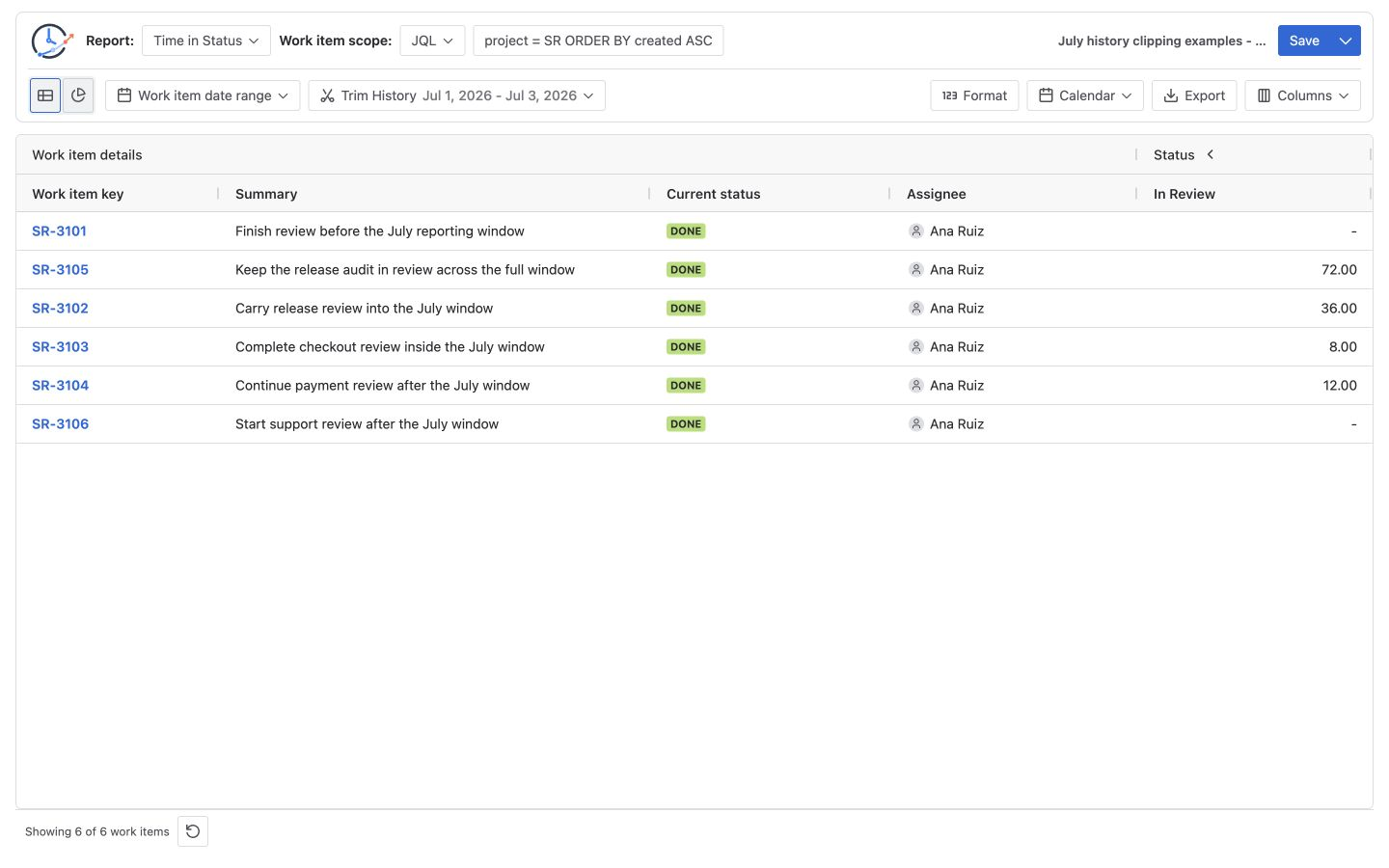
A release manager wants to compare how much In Review time landed inside a three-day release checkpoint, regardless of when each Story was created or resolved. Six SR work items cover the useful boundary cases: entirely before the window, crossing its start, entirely inside, crossing its end, spanning the full window, and entirely after it. The screenshots use synthetic demonstration data in a Jira test project.
Use this reproducible report definition:
| Setting | Value |
|---|---|
| Report type | Time in Status |
| Work item scope | JQL project = SR ORDER BY created ASC, returning SR-3101 through SR-3106 |
| Work item date range | Empty; do not narrow the selected population |
| Trim History Date From | 2026-07-01 |
| Trim History Date To | 2026-07-03 |
| Calendar | Scenario calendar All time (UTC), configured as 24×7 in UTC |
| Format | Decimal Hours |
| Status column | In Review |
The exact product controls are described in Report setup and scope and Calendars and duration. All time (UTC) is the 24×7 UTC calendar configured for this reproducible scenario, not a claim that every installation includes a calendar with that name. In production, use an equivalent administrator-configured calendar and record its schedule and timezone.
StatusPath interprets both Trim History dates in the timezone of the selected Work Calendar. Date From starts at the beginning of the selected calendar date, and Date To includes that complete calendar date. With the configured 24×7 UTC calendar, July 1–3 therefore counts every moment across those three days and displays a full-window duration of 72.00h. A different calendar timezone can move the same date boundaries, and daylight-saving changes can make a local calendar day shorter or longer than 24 hours.
Calculate each clipped status interval
For one closed status interval, use:
included duration = max(0,
  min(status end, window end) - max(status start, window start)
)
Applying that rule to the six In Review intervals gives:
| Work item | Full In Review interval (UTC) | Full duration | Overlap inside July 1–3 | Included hours (manual) |
|---|---|---|---|---|
SR-3101 | Jun 29 12:00 → Jun 30 23:00 | 35h | None; interval ends before the window | 0.00h |
SR-3102 | Jun 30 12:00 → Jul 2 12:00 | 48h | Jul 1 00:00 → Jul 2 12:00 | 36.00h |
SR-3103 | Jul 1 08:00 → Jul 1 16:00 | 8h | Entire interval | 8.00h |
SR-3104 | Jul 3 12:00 → Jul 4 12:00 | 24h | Jul 3 12:00 → end of Jul 3 | 12.00h |
SR-3105 | Jun 30 00:00 → Jul 4 00:00 | 96h | Entire selected window | 72.00h |
SR-3106 | Jul 4 08:00 → Jul 4 16:00 | 8h | None; interval starts after the window | 0.00h |
The manual total of the included In Review hours is:
0.00h + 36.00h + 8.00h + 12.00h + 72.00h + 0.00h = 128.00hThe Decimal Hours format displays the four non-zero cells as 36.00, 8.00, 12.00, and 72.00. StatusPath renders zero-duration status cells as an em dash, so the product table shows two dashes rather than 0.00. SR-3102 contributes exactly 36 of its full 48 hours because 12 hours occurred before July 1.
Configure and verify the report
1. Write the population question first
Decide whether membership means “all Stories in project SR,” “work items resolved during July,” or “work items that changed to In Review during July.” That sentence determines the source, JQL, and optional Work item date range—not Trim History.
For example, this Jira query selects work items whose status changed to In Review during the period:
project = SR
AND status CHANGED TO "In Review"
  DURING ("2026/07/01", "2026/07/04")
ORDER BY key ASC
Atlassian notes that Jira interprets a date without a time component at midnight in the searching user’s configured timezone, or the Jira system timezone when the user has not set one. The StatusPath Calendar does not change Jira search semantics. Treat the query above as July 1–3 only when that Jira search timezone is the intended population timezone, and record it separately from the StatusPath calculation timezone.
Use such JQL only when the transition itself defines membership. It may exclude SR-3102 and SR-3105, whose In Review intervals began before July 1 even though part of their duration overlaps the window. To preserve all six rows for this clipping analysis, use the scenario JQL project = SR ORDER BY created ASC and leave Work item date range empty.
2. Set the calculation window
Turn on Trim History, enter Date From 2026-07-01 and Date To 2026-07-03, then apply the range. Trim History changes the calculated history of work items already selected; it does not bring an excluded work item back into the report. See Report setup and scope for the control sequence.
3. Fix the calendar and display format
For this scenario, choose the configured All time (UTC) 24×7 calendar so every elapsed hour counts and the date boundaries are UTC midnights. Use Decimal Hours to compare the table directly with the manual calculation. A working calendar or another timezone would define a different calculation; Calendars and duration explains how these controls interact.
4. Inspect both boundaries in Jira History
Open representative work items and inspect Activity → History. Confirm the transition into In Review and the next transition out. For SR-3102, verify the original interval is 48 hours before clipping; for SR-3104, verify it is 24 hours. The report should show 36.00h and 12.00h respectively under this trim window.
5. Reconcile the result table
Check the zero, partial, full, and full-window cases individually. A correct table shows an em dash for SR-3101 and SR-3106, plus 36.00, 8.00, 12.00, and 72.00 for the four contributing rows. Their manual total is 128.00h. Save or export only after the population, Trim History range, calendar, timezone, and format are recorded together.
Common mistakes
Treating Work item date range as Trim History
A Created, Updated, or Resolved date filter can remove a row, but it does not define how much of that row’s status history is counted. Use Trim History for interval clipping.
Using status CHANGED as an overlap test
status CHANGED TO "In Review" DURING (...) finds work items with an entry event inside the period. It can miss an In Review interval that began earlier and continued into the period.
Making Date To midnight-only
In this StatusPath configuration, Date To 2026-07-03 includes the complete July 3 in the selected calendar timezone. Treating it as the start of July 3 would incorrectly remove that day’s contribution.
Mixing UTC with a local timezone
Date-only JQL boundaries follow the searching user’s Jira timezone, or the Jira system timezone when none is set, while Trim History boundaries follow the selected StatusPath Calendar timezone. Assuming one control sets both can change either the population or the partial durations. Align the two timezones when the business question requires the same dates, or document why they differ.
Comparing elapsed time with business time
The scenario’s configured All time (UTC) calendar counts every hour. A working calendar may exclude nights, weekends, or holidays, so it should not be expected to reproduce the manually verified 128.00-hour total.
Adding already rounded row values
When a display format rounds durations, the sum of visible cells may differ from a total based on unrounded intervals. Use Decimal Hours and preserve timestamp precision during manual verification.
Frequently asked questions
Does a Jira date range automatically trim status history?
No. JQL and Work item date range select work items. In StatusPath Reports, Trim History independently clips the history used for calculation.
Why is there a partial duration when the item entered In Review before July 1?
Because the In Review interval continued into the Trim History window. Only the overlapping portion counts; an entry event does not have to occur inside the window.
Is Date To inclusive?
Yes. StatusPath includes the complete Date To calendar date in the selected Calendar timezone. With the configured 24×7 UTC scenario calendar and Date To July 3, a July 1–3 full-window duration displays as 72.00h.
Can JQL CHANGED DURING replace Trim History?
No. It can define a population based on change events, but it does not clip every matching status interval to the period or calculate its duration.
How should I verify one result?
Read the transition timestamps in Jira Activity → History, reconstruct the full interval, intersect it with the Trim History window, and then apply the same calendar and timezone as the report.
For an interval that is still open, the current-status duration guide shows how a one-day Trim History boundary keeps a later run reproducible.
Related Guides
- How to List Jira Work Items That Left To Do Last Month
- Why Current Jira Status Time Keeps Growing
- How to Calculate Time in Status in Jira Cloud
- How to Create a Jira Time in Status Report with JQL
- How Time Zones Affect Jira Status Duration and Trend Reports
- How to Find the Date a Jira Work Item Entered a Status
Make every report boundary reviewable
Status duration is trustworthy only when the population and calculation window are visible together. StatusPath Reports can select Jira work items, clip their histories with Trim History, review partial durations, and save or export the reviewed configuration.