
How to Find the Date a Jira Work Item Entered a Status
Find and report the first date Jira work items entered a workflow status, distinguish re-entry, and validate results against Jira history.
For one Jira work item, open its activity history and find the status transition timestamp. For many work items, StatusPath Reports currently returns the first time each work item entered each status within the calculated history window. It does not currently provide a latest-entry or every-entry report mode. JQL status CHANGED TO can identify the work-item population, but it does not return the transition timestamp as a result column.
Choose the question before choosing the method
- One work item: inspect its Jira history and record the exact transition.
- Work items that changed during a period: use JQL history predicates to filter the population.
- First-entry date columns for many work items: use the Status Entry Date report and show the required status columns.
- Repeated-entry analysis: use Status Count to see how many times a status was entered.
- Latest or every entry: inspect Jira History or use a separate custom changelog process; these are not Status Entry Date report modes.
Atlassian documents that the JQL CHANGED operator supports predicates such as TO, BEFORE, AFTER, ON, and DURING for supported history fields. It filters matching work items; it does not itself add the matching transition timestamp as a result column.
Real Jira scenario: first entry, re-entry, and no entry
A release manager needs the first date each work item entered Ready for Release:
| Work item | History result | First entry date |
|---|---|---|
| SR-2901 | Entered once | Jul 2, 2026, 10:00 UTC |
| SR-2902 | Entered, left, then entered again | Jul 2, 2026, 10:00 UTC |
| SR-2903 | Never entered | Blank |
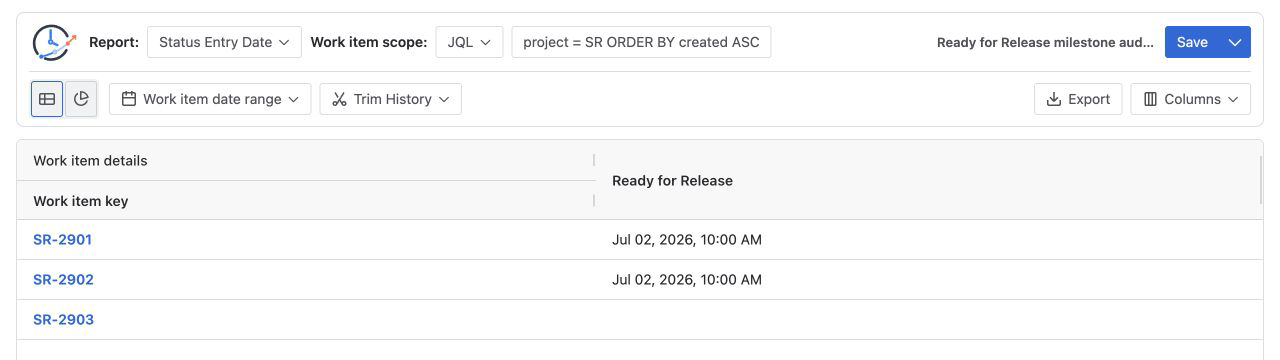
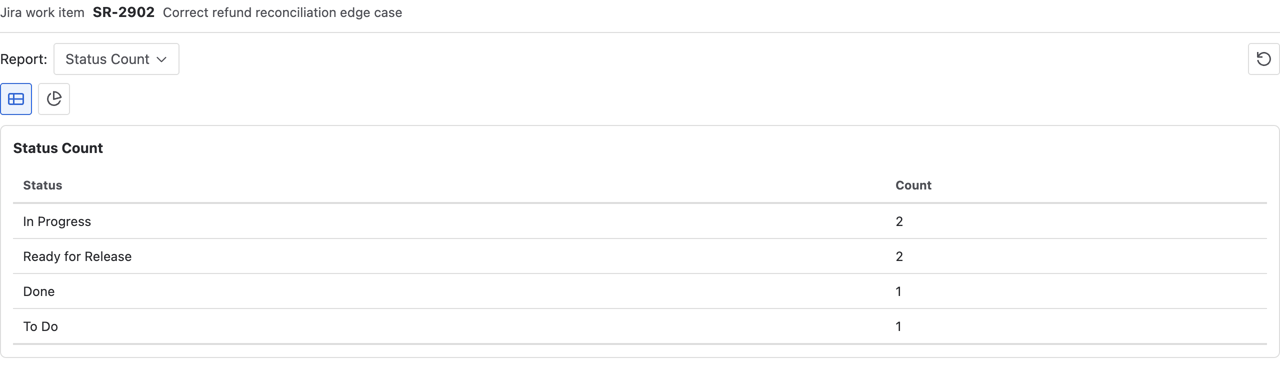
SR-2902 has two Ready for Release entries. Its activity analysis confirms a status count of 2, while its first entry date remains July 2.
Manual calculation for the repeated-entry example
The relevant SR-2902 history is:
2026-07-02 10:00 UTC: In Progress → Ready for Release
2026-07-03 12:00 UTC: Ready for Release → In Progress
2026-07-05 10:00 UTC: In Progress → Ready for Release
Therefore:
First entry = min(2026-07-02 10:00, 2026-07-05 10:00)
            = 2026-07-02 10:00 UTC
Status count = 2
If the business question asks for the latest entry instead, the answer would be July 5 at 10:00 UTC. Status Entry Date does not calculate that latest-entry value; inspect Jira History or use a custom changelog process and label the output explicitly.
Method 1: inspect one work item in Jira
Open the work item activity or history, locate the status change, and record the timestamp, source status, and destination status. This is the best verification method for a small number of work items and for checking a calculated report.
Beware of display timezone: record the timezone along with the timestamp when the result will be compared or exported.
Method 2: use JQL to find matching work items
For example:
project = SR
AND status CHANGED TO "Ready for Release"
  DURING ("2026/07/01", "2026/07/08")
ORDER BY key ASC
This finds work items with at least one qualifying transition in the period. It does not set the calculation window for Status Entry Date.
For example, suppose a work item first entered Ready for Release on June 28 and entered it again on July 5. The DURING clause for July selects that work item because of the July 5 transition. With full history, Status Entry Date can still show June 28. If the question is “first entry during July,” set Trim History to the same July range. The displayed first entry is then the earliest calculated entry in that trimmed window, not necessarily the first entry in the full Jira history. If a status interval crosses the trim start, the calculated entry can be the trim boundary.
Method 3: build a Status Entry Date report
- Select Status Entry Date as the report type.
- Set the Project, Filter, JQL, Sprint, or Epic scope and apply it so the report runs.
- Set Work item date range and Trim History only when the business question requires them.
- Open Columns and show the target status column, such as Ready for Release.
- Review one work item that entered once, one that re-entered, and one that never entered the status.
- Use Export when a spreadsheet is required.
There is no separate milestone-status selector. Status columns are selected in Columns. See Report types for the first-entry definition and Table view for dynamic columns and blank values.
StatusPath Reports is built by BlueGrove Labs. If you need first-entry date columns across multiple work items, open StatusPath Reports on Atlassian Marketplace, run Status Entry Date for one known work item that re-entered the target status, and compare it with Jira History. The report returns the first entry in the calculated history window; it does not provide a latest-entry or every-entry mode.
Method 4: calculate from Jira changelogs in a custom pipeline
Atlassian’s Jira Cloud issue REST API documentation includes bulk changelog retrieval. A custom pipeline must respect pagination, field selection, permissions, chronological ordering, repeated transitions, and timezone conversion. It should also preserve enough source evidence to reproduce each milestone date.
This custom pipeline is separate from the Status Entry Date report. For each work item, filter status changelog entries whose destination equals the target status, then take the minimum timestamp for first entry, the maximum for latest entry, or retain the complete ordered list for every entry.
Common mistakes
Treating JQL as a timestamp column
status CHANGED TO finds work items. It does not automatically display the matching transition date in search results.
Treating latest or every entry as a report option
First entry, latest entry, and every entry are different business definitions when a status repeats. Status Entry Date supports the first-entry definition only. Use Status Count for the number of entries and Jira History or a custom changelog process for latest or every entry.
Replacing blank with zero
StatusPath leaves the cell blank when a work item has no milestone date for the selected status. A downstream spreadsheet or other derived artifact may substitute a clearly labeled “not reached” value, but that is not a StatusPath display mode.
Ignoring Trim History
The earliest entry inside a clipped history window may not be the work item’s first entry overall.
Comparing timestamps without timezones
The same instant may appear under different local dates. Normalize to an agreed timezone for review.
Frequently asked questions
Can Jira JQL return the exact date a work item entered a status?
JQL can filter work items by status-change history. For the exact timestamp, inspect Jira history or calculate it from changelog data.
What if the work item entered the status more than once?
Status Entry Date returns the first entry in the calculated history window. Use Status Count when reviewers need to see whether re-entry occurred. For the latest timestamp or the complete entry list, inspect Jira History or use a custom changelog process.
Why is the Status Entry Date blank?
The work item may never have entered the selected status, the relevant history may be outside the trim window, or the viewer may not have access to the required data.
Can I export the milestone date to Excel?
Yes. Configure the Status Entry Date table, verify representative histories, then export the reviewed report to XLSX or CSV.
Is Status Entry Date the same as Time in Status?
No. Status Entry Date is a milestone timestamp. Time in Status is the sum of qualifying intervals spent in the status.