
How to Export Jira Time in Status to Excel
Export a Jira project or saved-filter Time in Status report to XLSX or CSV without rebuilding JQL, then verify calculated status durations before sharing.
To export Jira Time in Status to Excel, first define the Jira work item population, history window, working calendar, fields, and status columns in the report. Review the table, then choose Export → Export XLSX. The workbook contains the configured calculated duration columns; verify representative rows against the report and Jira History before treating the file as review evidence.
Native Jira export and calculated duration export are different
Atlassian’s search export documentation says Jira search can export all, current, or filter fields to CSV and can open results in Microsoft Excel. Those exports are valuable for Jira fields. A column such as “time in In Review” is different: it must first be calculated from status history under a declared time window and calendar.
Use Time in Status when the spreadsheet needs one calculated duration column per status. Use Jira’s native export when the required artifact is simply the selected Jira fields.
Export a project report without rebuilding JQL
If the whole Jira project is the required population, select Project as the StatusPath data source. If the team already maintains the population in Jira, select its Saved Filter. Neither path requires rewriting the filter as inline JQL each time. Use the data-source comparison to decide whether Project, Filter, JQL, Sprint, or Epic owns the report population.
Do not treat this as a generic one-click Jira Backlog export. A board backlog can depend on the board’s saved filter, sprint state, Kanban sub-filter, and column or status mapping; it is not automatically identical to every open work item in a project. For a plain snapshot of current Jira fields, use Jira’s native basic search and CSV export. For an exact maintained backlog population, verify the board rule and reuse the corresponding shared Jira filter. StatusPath becomes relevant only when that population also needs calculated columns such as time in Backlog, In Progress, or Review.
This separation keeps the promise precise: Project or Saved Filter can avoid hand-writing complex JQL, while the exported file remains a StatusPath report result rather than a complete copy of the Jira board, backlog, comments, attachments, worklogs, or changelog.
Real Jira scenario: a 20-item release workbook
A release manager needs a workbook with 20 work items and these columns:
- Work item key, Summary, Current status, and Assignee
- In Progress, In Review, and QA duration
- Total for the three selected statuses
The report uses one maintained JQL population:
project = SR AND fixVersion = "July Release"The team records the calendar as Weekdays 09:00-17:00, UTC, keeps full history, and uses the hours-and-minutes display. That configuration belongs in the review notes with the workbook.
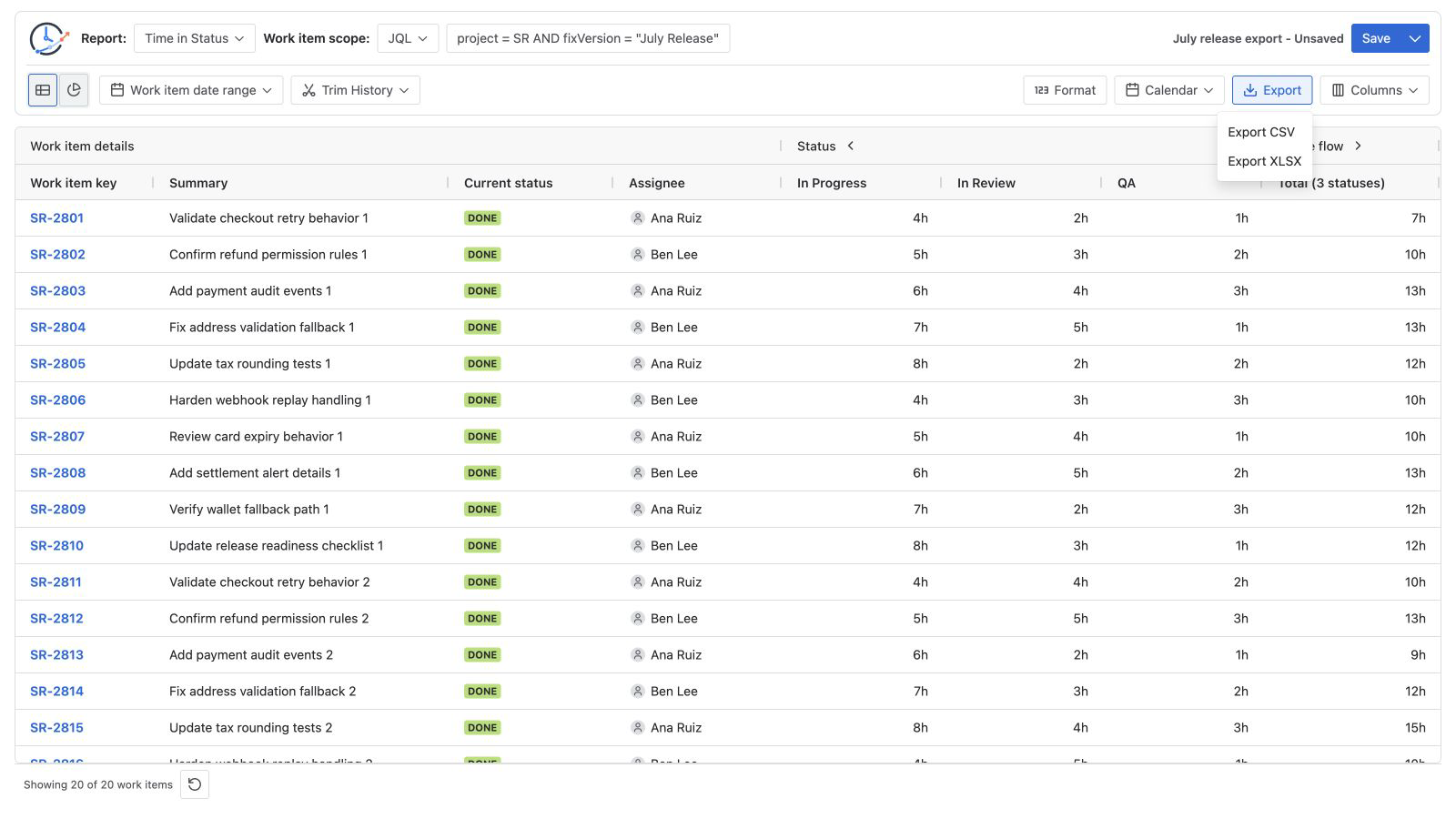
Calculation and verification example
Three rows are checked before the workbook is circulated:
| Work item | In Progress | In Review | QA | Selected total |
|---|---|---|---|---|
| SR-2801 | 4h | 2h | 1h | 7h |
| SR-2802 | 5h | 3h | 2h | 10h |
| SR-2803 | 6h | 4h | 3h | 13h |
For SR-2801, the manual sum is:
4h + 2h + 1h = 7hThe reviewer checks all four values in the report, opens the downloaded workbook, and confirms the same row and column headings. A second check against Jira History confirms that the status intervals are consistent with the declared calendar.
Export the report step by step
1. Run the report
Select Project, Filter, JQL, Sprint, or Epic, apply the calculation settings, and run the report. For this release example, confirm that the JQL is exactly project = SR AND fixVersion = "July Release" and that the result contains 20 work items.
2. Configure Columns
Open Columns. Keep the work item fields reviewers need, show In Progress, In Review, and QA, and include Total for those three statuses. The Table view documentation explains dynamic columns and column management.
3. Set supported filters and sorting
Apply the table filters and sort order needed in the file, then check the visible column order. These table choices are part of the export state.
4. Click Export
Open the Export menu after the table finishes loading.
5. Choose Export XLSX
Choose Export XLSX for the Excel workbook. Choose Export CSV instead when a lightweight interchange file is required. The Export documentation describes both formats and export progress.
6. Open and verify the file
Open the downloaded file and check that it contains 20 rows, the expected headers, and the SR-2801, SR-2802, and SR-2803 values shown above. Record the export time because Jira data can change after the file is generated.
What the export includes
For this Time in Status report, export loads the complete result for the current report configuration; it does not export only the browser viewport or the initially loaded 50 rows. Supported table filters and sorting are applied to that complete result. Hidden columns are excluded, and the visible column order is carried into the file, with the derived Total column kept after its metric columns. Dynamic status or group columns that are not generated for the current configuration may be absent.
The report definition still matters: record Work item date range, Trim History, calendar, timezone, duration format, and the selected fields and statuses with the workbook. These settings can change values even when the same 20 work items are selected.
Spreadsheet safety and handling
Spreadsheet formula injection is the relevant risk when text is interpreted as a formula by spreadsheet software. Before a CSV download, StatusPath prefixes potential formula text that begins with =, +, -, or @ with an apostrophe to reduce that risk; a lone literal - value is left unchanged. This is a limited safeguard, not a defense against every spreadsheet or downstream transformation risk.
- Export only the Jira fields needed for the review because those fields may contain sensitive information.
- Limit sharing to intended reviewers and handle converted or transformed files carefully.
- Do not describe an export as an immutable audit record unless your own retention and control process makes it one.
Common mistakes
Exporting before the report definition is stable
Changing the calendar, Trim History, or selected statuses after export creates a different artifact. Finalize and record the definition first.
Confusing Jira-native fields with calculated history columns
Jira search export does not automatically create a separate duration column for every workflow status. Confirm which system produced the file.
Verifying only the row count
A file can contain 20 rows and still use the wrong history window or calendar. Verify values, not only population size.
Treating Saved Reports as frozen files
A Saved Report stores reusable configuration and reruns against current accessible Jira data. Export produces a point-in-time file from one run.
Ignoring filters and hidden columns
Review the current table state before export. Supported filters, sorting, hidden columns, and column order can change what reviewers receive.
Frequently asked questions
Can Jira export Time in Status directly to Excel?
Jira search can export Jira fields and open results in Excel. Calculated per-status durations require a history calculation or a maintained custom field before export.
Should I use CSV or XLSX?
Use XLSX for a review-ready workbook and CSV for interchange or downstream processing. Verify both with the same report definition.
Does the workbook update when Jira changes?
No. The file reflects one export run. Rerun the report and export again to capture later changes.
Which rows should I verify?
Check at least one ordinary row, one high-duration row, one blank or zero-looking row, and one manually reconstructed Jira history interval.
Can I export Status Entry Date or event counts too?
Yes. StatusPath table exports can include the configured calculated columns for the selected report type, including first-entry dates and counts.
Related Guides
- How to Create a Jira Time in Status Report with JQL
- Jira Workflow Reporting Guide: From Scope to Export
- How to Calculate Time in Status in Jira Cloud
- How Is Average Time in Status Calculated in Jira?
- How to Measure Time by Assignee in Jira
- Why a Jira Status Column Is Missing from a Time in Status Report
Export a defined report, not an unexplained table
A useful Excel file preserves the work item population, calculation window, calendar, fields, calculated columns, and verification notes around the numbers. Try StatusPath Reports on the Atlassian Marketplace when the spreadsheet needs calculated status-duration columns, then verify representative rows before exporting the reviewed table as CSV or XLSX.