
How to Measure Time by Assignee in Jira
Calculate historical Jira ownership time across assignee changes, unassigned intervals, repeated ownership, calendars, and worklogs.
A Jira time per assignee report shows how long each work item was recorded under each owner; it does not measure logged effort. To calculate it, reconstruct the Assignee field history as consecutive intervals. The first interval starts when the work item is created and uses its initial Assignee value—a person or Unassigned. Each later interval starts at an Assignee change. The final interval ends at the report endpoint, the Trim History end, or the current calculation endpoint. Add repeated intervals for the same owner.
Current assignee, history, and worklogs answer different questions
The current Assignee field tells you who owns a work item now. It cannot show previous owners or how long an item waited between handoffs. Jira History records field edits and workflow movements, while the Work log records time someone explicitly logged. Atlassian documents those as separate activity types in work item activity.
Use the terms precisely:
| Evidence | What it answers | What it does not prove |
|---|---|---|
| Current Assignee | Who owns the item now? | Previous ownership or duration |
| Assignee history | When did ownership change? | How much active work occurred |
| Time in Assignee | How long was each owner recorded? | Individual productivity |
| Work log | How much time was explicitly logged? | Complete ownership or waiting time |
Time in Assignee is a companion to Time in Status. One describes ownership; the other describes workflow state. Together they can show, for example, that a long interval under one owner was actually spent in Waiting for Customer.
For a broader method that connects ownership duration to report scope, history windows, validation, and exports, use the Jira workflow reporting guide.
Real Jira scenario: repeated ownership and an unassigned queue
Suppose release item SR-2401 has this history:
| Time | Assignee event | Interval |
|---|---|---|
| 08:00 | Created unassigned | 2h |
| 10:00 | Assigned to Ana Ruiz | 5h |
| 15:00 | Assigned to Ben Lee | 3h |
| 18:00 | Reassigned to Ana Ruiz | 2h |
| 20:00 | Reporting endpoint | — |
The owner totals are:
Unassigned = 2h
Ana Ruiz   = 5h + 2h = 7h
Ben Lee    = 3h
Total      = 12h
Ana appears twice in the event sequence but once in the summary column. The 7-hour total means the item was recorded under Ana for seven hours. It does not mean Ana performed seven hours of work.
The raw calculation above uses elapsed time. The report below applies a 09:00–17:00 UTC business calendar to the same history, so it shows 1h Unassigned, 5h for Ana, and 2h for Ben. This is why the calendar must travel with any reported number.
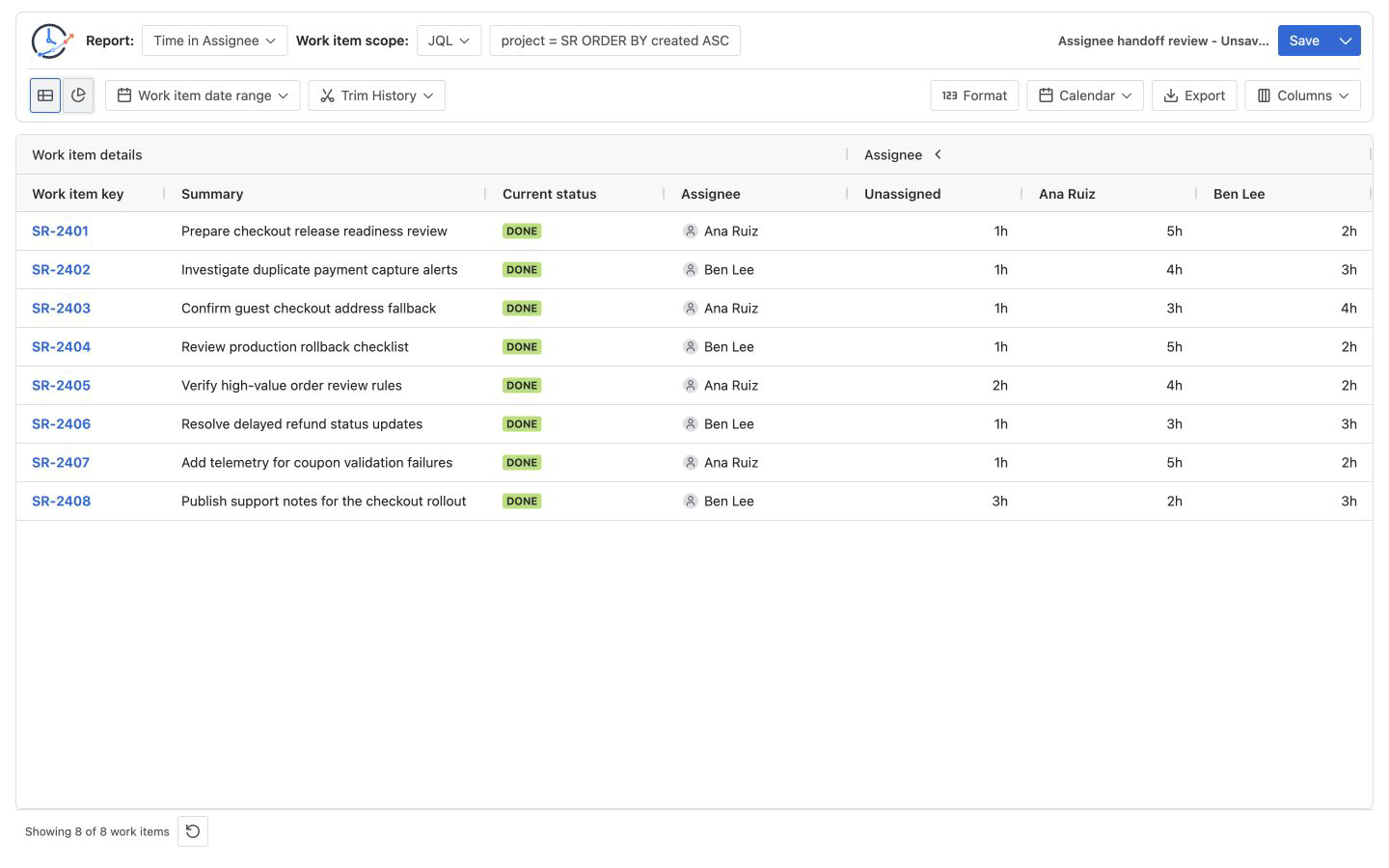
The screenshot applies the UTC Monday-Friday 09:00-17:00 calendar. Under that calendar, the same event history becomes 1h Unassigned, 5h Ana, and 2h Ben because the remaining hours fall outside configured working time. The elapsed totals above remain 2h, 7h, and 3h.
What Jira can verify natively
Open a representative work item, select its Activity area, and inspect History. Atlassian describes History as the record of updates such as field edits and workflow movements. Use those timestamps to validate suspicious handoffs.
To review a completed period, JQL can select work items whose Assignee changed during June 2026:
project = SR
AND assignee CHANGED DURING ("2026/06/01", "2026/06/30")
Atlassian’s JQL operator reference says CHANGED supports Assignee and predicates including FROM, TO, AFTER, BEFORE, and DURING. The query finds matching work items; it does not calculate the duration between changes.
Build a Time in Assignee report
- Define the question. Ask where items waited, where handoffs occurred, or how much time was unassigned. Avoid beginning with “who is slowest?”
- Choose a stable scope. Use a Project, saved Filter, JQL, Sprint, or Epic. Add fields such as status, priority, work type, or component for context.
- Separate selection from history. Work item date range selects rows by Created, Updated, or Resolved date. Trim History clips the Assignee history used in the calculation.
- Select Time in Assignee. Read across a row for one item’s ownership distribution and down a column to compare items under the same recorded owner.
- Choose Calendar and Format. Elapsed time includes nights and weekends. A working calendar counts only configured business periods.
- Sort and validate. Sort the unassigned or target-owner column, then compare representative intervals with Jira History.
See Report types for the report definition and Report setup and scope for source, date, and history controls.
Check one handoff in Issue Activity
StatusPath Reports Issue Activity can show Time in Assignee for the current Jira work item. It is useful when a row looks unusual and you want a focused comparison without rebuilding the multi-item report.
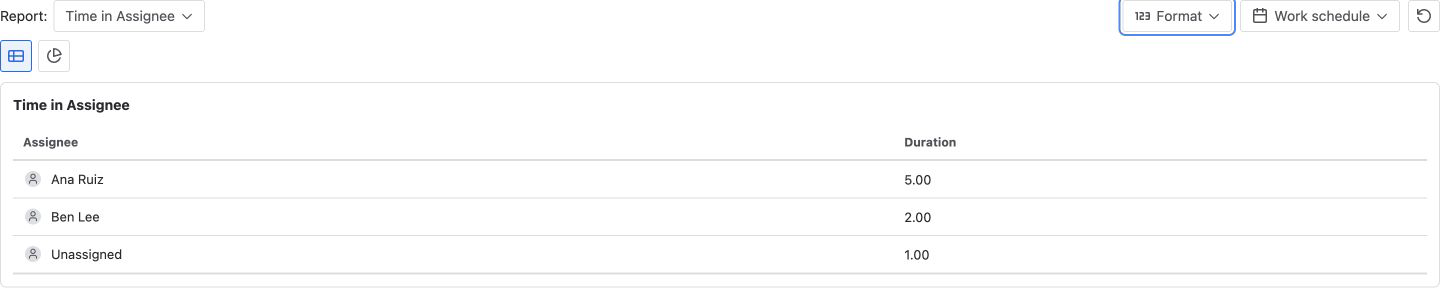
Read Issue Activity documentation for its supported report and work-schedule controls.
Common mistakes
Treating the current field as complete history
The current Assignee is only the final value. Use field-change timestamps for prior owners and unassigned periods.
Equating ownership duration with effort
An item can wait on clarification, another team, a customer, or a scheduled event while assigned. Do not rank people using assignment time alone.
Dropping unassigned intervals
Unassigned time can reveal routing and queue delays. Preserve it as a meaningful state.
Ignoring repeated ownership
Summaries should add repeated intervals for the same owner, while the event history remains available to show sequence.
Comparing different calendars or history windows
Two reports can be internally correct and still disagree because one uses elapsed time, another uses business hours, or Trim History clips different dates.
Frequently asked questions
Is Time in Assignee the same as Jira time tracking?
No. Time tracking uses worklogs. Time in Assignee uses intervals during which the Assignee field held a value.
Does unassigned time count?
Yes, when the history contains an unassigned interval inside the calculation window. Keep it visible when queue delay matters.
What happens when the same person owns an item twice?
Their intervals are added in the summary. In this example, Ana’s 5-hour and 2-hour intervals total 7 hours.
Do business hours affect Time in Assignee?
Yes. It is a duration report, so the selected working calendar can exclude nights, weekends, holidays, and other non-working periods.
Can JQL calculate time by assignee?
JQL can find items whose Assignee changed, but the standard query result does not calculate duration between change timestamps.
Does this show time spent by each assignee in each workflow stage?
No. Time in Assignee summarizes ownership intervals, while Time in Status summarizes status intervals. The current report does not produce an Assignee-by-Status cross-tab. Compare both report dimensions for the same work item and verify the sequence in Jira History.
Is this a complete Jira assignee history report?
No. The summary combines repeated intervals for the same owner. Use the work item’s Jira History when you need the complete ordered sequence of Assignee changes.
Related Guides
- How to Create Custom Assignee Groups for Jira Workflow Reports
- How to Calculate Time in Status in Jira Cloud
- How to Measure Jira Rework with Status Count and Transition Count
- How to Find Jira Workflow Bottlenecks
- Jira Workflow Reporting Guide: From Scope to Export
Turn ownership history into a reviewable workflow signal
Time in Assignee helps teams find unassigned waiting, repeated handoffs, and ownership intervals that deserve investigation. StatusPath Reports can calculate those intervals across a Project, Filter, JQL, Sprint, or Epic and provide a single-item check in Issue Activity. Pair the result with status, worklogs, and Jira History before drawing conclusions.
Try StatusPath Reports on the Atlassian Marketplace to reproduce the report with your own Jira permissions and workflow history.