
How to Create a Jira Time in Status Report by Sprint
Create a Sprint-scoped Jira Time in Status report, separate sprint membership from history boundaries, and validate the result with a fixed eight-item example.
To create a Jira Time in Status report by Sprint, select Time in Status, set Work item scope to Sprint, choose the Jira board and then the sprint, and define the Calendar, Format, status columns, and Trim History rule. Verify the selected population in Jira before interpreting duration: Sprint membership chooses the work items, while Trim History chooses which part of their workflow history is calculated.
For a broader retrospective sequence that combines completion, rework, and trends, use the Jira Sprint workflow analysis guide. This page owns the narrower setup and acceptance-test workflow.
What the Sprint source does — and does not do
Atlassian’s Sprint Report documentation applies to company-managed Scrum spaces. In that scope, the native report is board-specific, includes only work items matching the board’s saved filter, and marks work items added after the sprint started. Atlassian’s JQL field reference also documents that Jira can search the Sprint field by sprint name or ID.
Those facts help validate the Jira population. They do not mean that selecting a Sprint automatically clips every work item’s history to the sprint dates. In StatusPath Reports:
- Board + Sprint selects the population Jira returns for that source.
- Work item date range can further include or exclude work items based on a selected Jira date field.
- Trim History limits the status-history intervals used in the calculation.
- Calendar controls which portions of those intervals count as duration.
Read Report setup and scope for the current controls and How Jira report date ranges clip status history before using a trimmed window.
Reproducible Jira scenario: Sprint 24
The reproducible demonstration uses eight non-production work items on StatusPath Demo Scrum and StatusPath Sprint 24. It uses a team-configured 24×7 Calendar in UTC so the manual values equal elapsed timestamp differences. Document the Calendar schedule and timezone with any production result.
- six work items were in scope at sprint start;
SR-3807andSR-3808were added during the sprint;SR-3801is the pre-sprint-history control, with an In Progress interval that begins before the sprint start;- seven work items are Done at the reporting endpoint;
SR-3808is still in In Review.
The native Jira Sprint Report is the acceptance source for items added after the sprint started. SR-3801 is the pre-sprint-history control because the demonstration uses its earlier In Progress interval to test history clipping. That label describes only the calculation boundary in this scenario; it does not claim that the work item belonged to an earlier Sprint. The StatusPath table is the acceptance source for the selected set of eight work items and their calculated status durations.
Configure the report
- Open Apps → StatusPath Reports.
- Select Time in Status as the report type.
- Set Work item scope to Sprint.
- Choose the
StatusPath Demo Scrumboard, thenStatusPath Sprint 24. - Leave Work item date range unbounded for the first acceptance run.
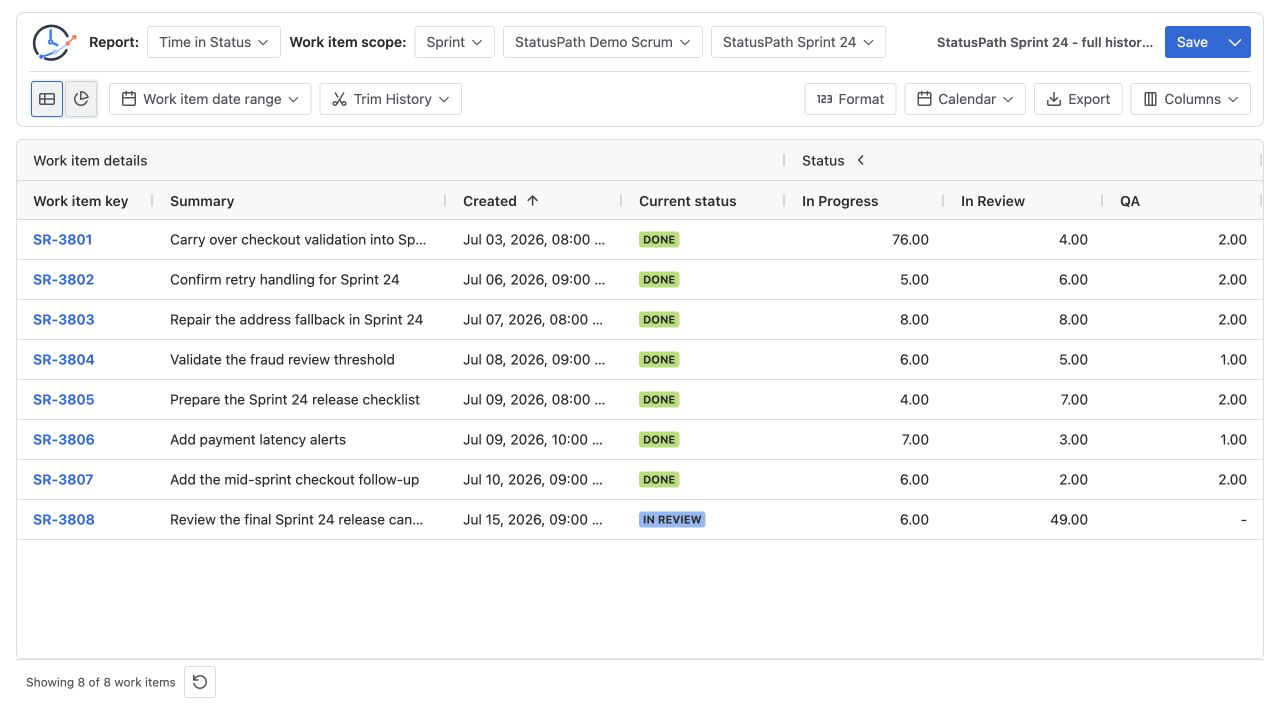
- Turn Trim History off so the first run uses the selected items’ full available history.
- Select the team’s configured 24×7 UTC Calendar and Decimal Hours.
- Show Work item key, Summary, Created, Current status, In Progress, In Review, and QA.
- Wait for the table to finish refreshing, then confirm that exactly eight rows are present.
Save the accepted configuration if the team will repeat it. Saved Reports documentation explains which scope, history, Calendar, Format, field, and column choices are restored.
Verify the full-history result by hand
The eight In Review values are fixed for this acceptance dataset:
| Work item | Scope role | In Review |
|---|---|---|
| SR-3801 | Pre-sprint-history control | 4.00h |
| SR-3802 | Sprint-start scope | 6.00h |
| SR-3803 | Sprint-start scope | 8.00h |
| SR-3804 | Sprint-start scope | 5.00h |
| SR-3805 | Sprint-start scope | 7.00h |
| SR-3806 | Sprint-start scope | 3.00h |
| SR-3807 | Added after start | 2.00h |
| SR-3808 | Current In Review interval | 49.00h |
| Total | 8 contributing work items | 84.00h |
Total In Review = 4 + 6 + 8 + 5 + 7 + 3 + 2 + 49 = 84 hours
Completed share = 7 / 8 × 100 = 87.5%
The 84-hour total does not prove why Review took that time, and the 87.5% share is not a velocity metric. They are acceptance checks for this exact population and report endpoint.
Test the history boundary without changing the population
Create a second run with the same board, Sprint, Calendar, Format, fields, and status columns. Set Trim History from 2026-07-06 through 2026-07-17 in UTC.
SR-3801 entered In Progress before July 6. Its full-history In Progress value is 76.00h; the trimmed run counts only the overlap inside the selected dates and shows 13.00h. Both runs still contain the same eight Sprint work items.
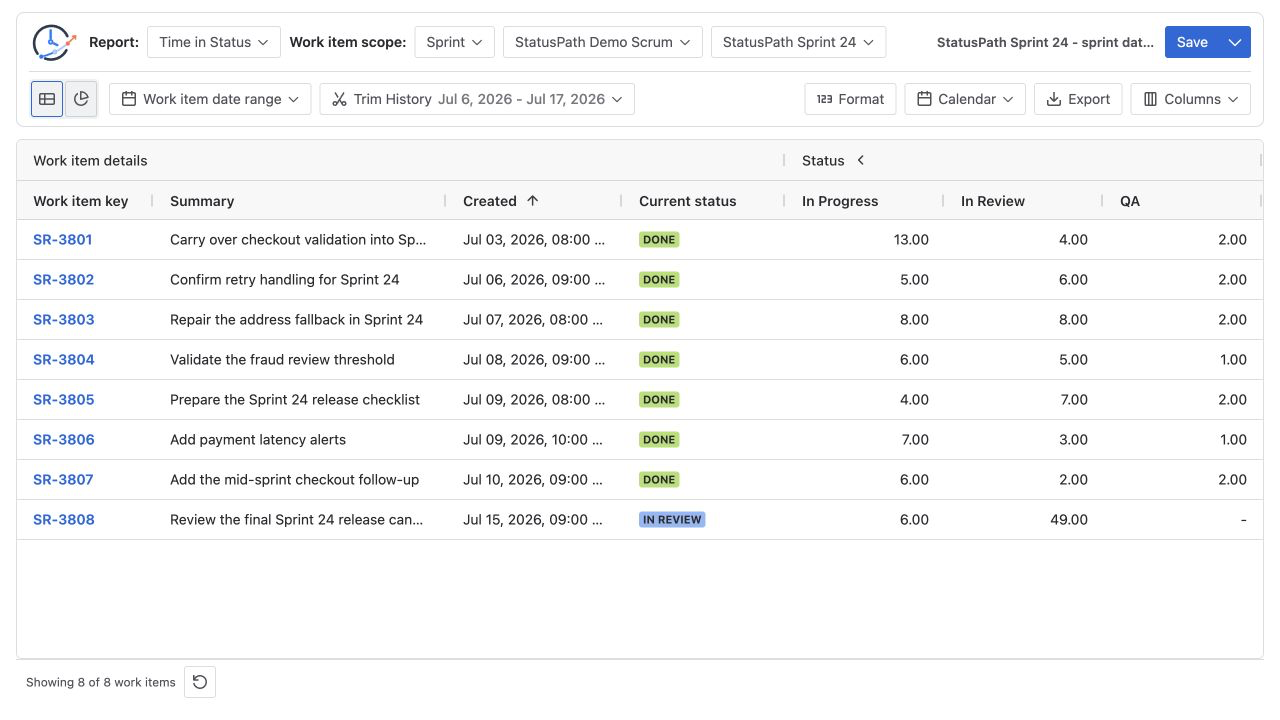
This comparison proves the boundary rule: Sprint selection and history clipping are separate settings.
Acceptance checklist
| Check | Expected evidence |
|---|---|
| Jira scope | Correct Scrum board and Sprint 24 selected |
| Native scope changes | Jira Sprint Report identifies SR-3807 and SR-3808 as added after start |
| StatusPath population | Eight rows in both full-history and trimmed runs |
| Full-history calculation | In Review total equals 84.00h |
| Open interval | SR-3808 In Review equals 49.00h at the fixed report endpoint |
| Trimmed control | SR-3801 In Progress changes from 76.00h to 13.00h |
| Stable settings | Same Calendar, Format, fields, statuses, and report endpoint in the comparison |
Common mistakes
Choosing a Sprint name without confirming the board
Sprints are tied to boards, and names can be similar. Select the board first and verify the native Jira Sprint Report before accepting the population.
Assuming Sprint dates automatically trim history
They do not in this workflow. Decide whether the question needs full lifecycle history or a sprint-date window, then set Trim History explicitly.
Letting Work item date range silently remove the pre-sprint-history control
A Created or Resolved range can exclude a valid Sprint member. Keep the first acceptance run unbounded, then add a work item date rule only when the question requires it.
Comparing runs with different Calendars or endpoints
A current interval changes with the report endpoint, and a business calendar can exclude non-working time. Keep both fixed when validating only the history boundary.
Treating the table as proof of when an item joined the Sprint
Use Jira’s native Sprint evidence for scope changes. The Time in Status table calculates workflow history for the population it receives.
Frequently asked questions
Does a Sprint source include only work performed during the Sprint?
No. It selects work items from the chosen board and Sprint. Use Trim History when the calculation must be limited to a date window, and record the timezone used for those date boundaries.
Why do I need to choose a board before a Sprint?
The board scopes the available Sprint context. Atlassian also documents its native Sprint Report as board-specific and limited by the board’s saved filter.
Should carryover history be included?
Only classify an item as carryover when independent Sprint-membership evidence or a documented team record establishes that fact; workflow history beginning before the Sprint is not enough. If carryover is established, whether to include its earlier history depends on the question. Full history answers how the selected Sprint items moved across their available lifecycle; a trimmed window answers what their history contributed inside the selected dates. Label the choice.
Can I use JQL instead of the Sprint source?
Jira supports Sprint-field JQL by sprint name or ID. Use JQL when you need additional population predicates; use the Sprint source when the board-and-Sprint selection is the clearest reproducible configuration. Do not assume the two setups are identical without comparing the returned keys.
Related Guides
- Jira Sprint Workflow Analysis: Time, Rework, and Trends
- How to Calculate Time in Status in Jira Cloud
- How Jira Time in Status Date Ranges Clip History
- Jira Workflow Reporting Guide: From Scope to Export
Turn the Sprint setup into a repeatable acceptance test
Record the board, Sprint, work item keys, date controls, Trim History rule, Calendar, Format, visible columns, and report endpoint before comparing results. Follow the exact Report setup and scope workflow, then use Saved Reports to preserve the reviewed configuration. Try StatusPath Reports on the Atlassian Marketplace to reproduce the Sprint-scoped table.